

DBCode has AI built into four different parts of the workflow. No extra setup needed for most of them.
1. Query builder AI
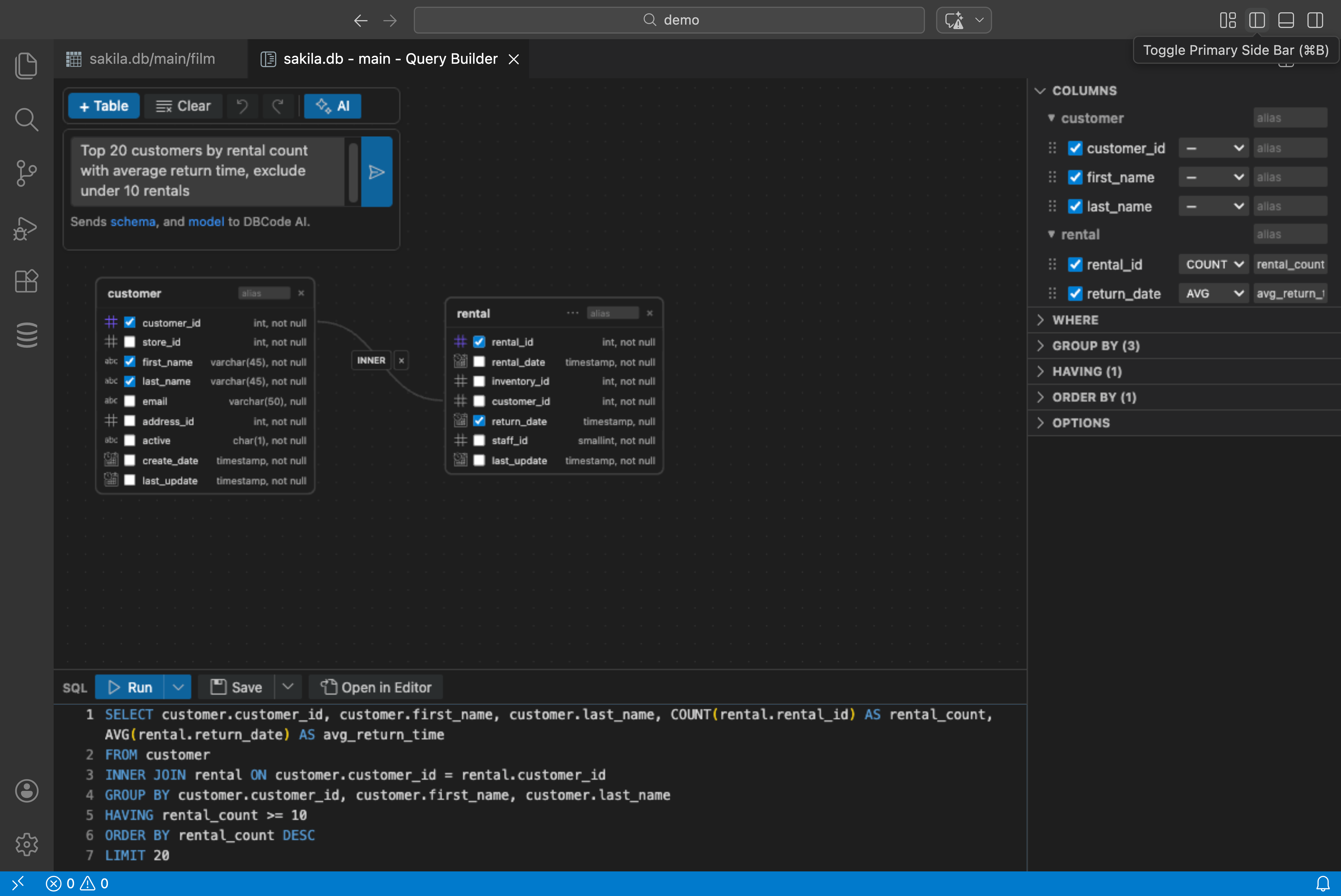
Open the query builder and type plain English into the toolbar input at the top. “Show me all customers with orders over $100 in the last 30 days.”
DBCode reads your schema, builds the query, and updates the canvas with tables, joins, columns, and filters. The SQL preview at the bottom updates live. Undo with Ctrl+Z if it gets something wrong.
You can also modify an existing query: “Add a date filter for last month” or “Change to LEFT JOIN.”
No Copilot required. This uses DBCode’s built-in AI.
2. Inline completion
Start typing SQL in any .sql file or notebook cell. Gray text suggestions appear as you type. Press Tab to accept.
For natural language, write a SQL comment: -- find all users with last name "Smith" and the AI generates the query below it. It knows your schema so it uses the right table and column names.
Works with GitHub Copilot if you have it, or DBCode’s hosted model as a fallback.
3. AI Assist for the data grid
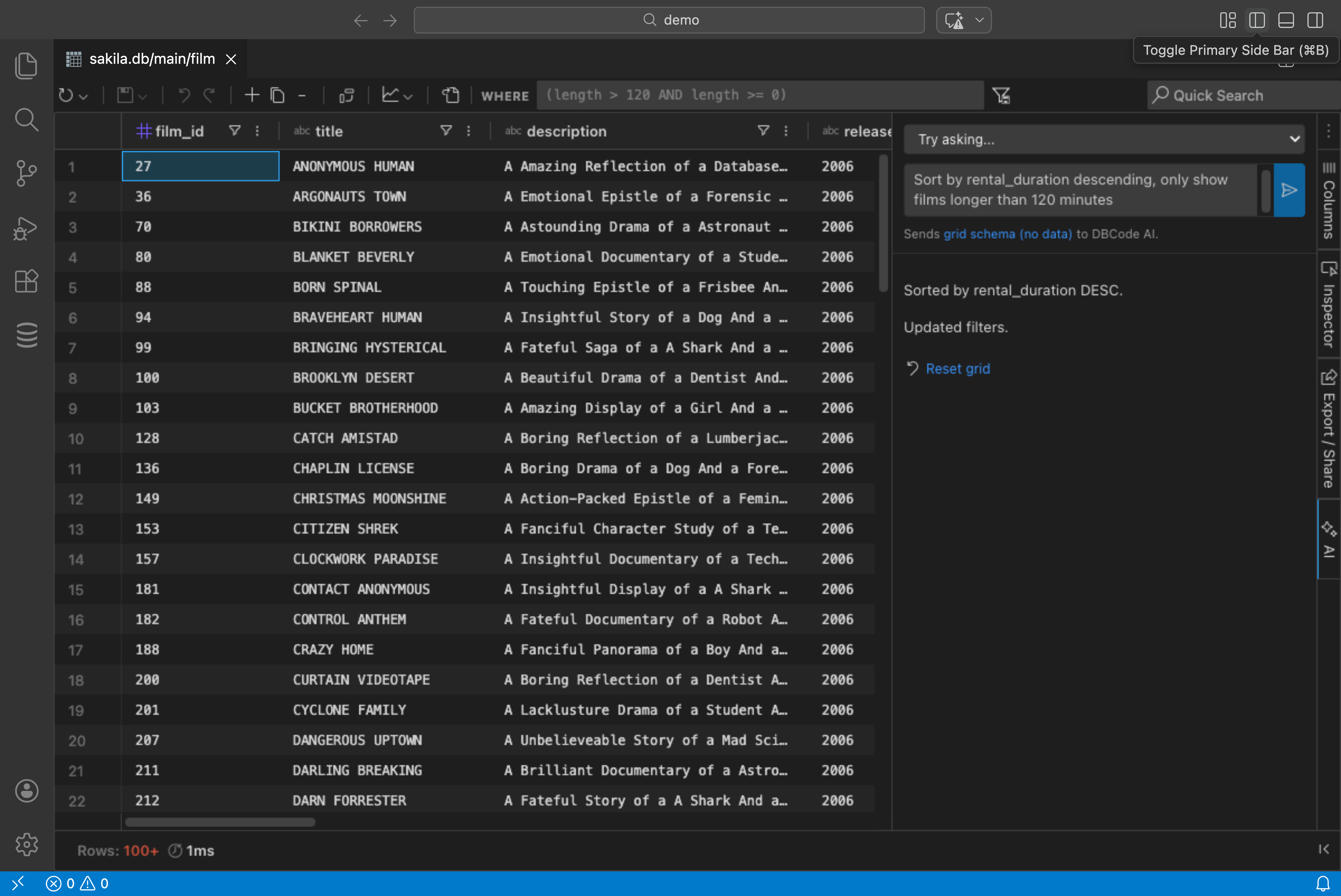
Run a query, then open the AI Assist panel from the grid sidebar (sparkle icon). Type requests in plain English:
- “Sort by revenue descending”
- “Group by country”
- “Only show orders over $100”
- “Chart this as a bar chart”
- “Hide the ID column”
- “Pivot by quarter with revenue totals”
The grid updates instantly. This controls filtering, sorting, grouping, aggregation, pivoting, column visibility, and chart creation. Only column names and types are sent to the AI, never your actual data.
4. MCP for external AI tools
DBCode runs an MCP server that lets AI clients like Cursor, Claude Desktop, and Windsurf interact with your databases. Start it from the command palette: DBCode: MCP Start Server.
The AI can then discover connections, read schemas, execute queries, and interpret results. Two-step workflow: ask it to read the schema first, then ask questions about your data.
Supports OAuth authentication or no-auth for trusted local setups.