
AI
AI Assist for Data Grid
AI Assist is a single conversational panel in the data grid. There’s no mode to switch - ask for whatever you want, and the panel decides what to do. It answers data requests (which rows, aggregates, or derived results to fetch) by writing SQL, and presentation requests (how the currently loaded data is displayed) by changing the grid or chart directly, all in the same conversation.
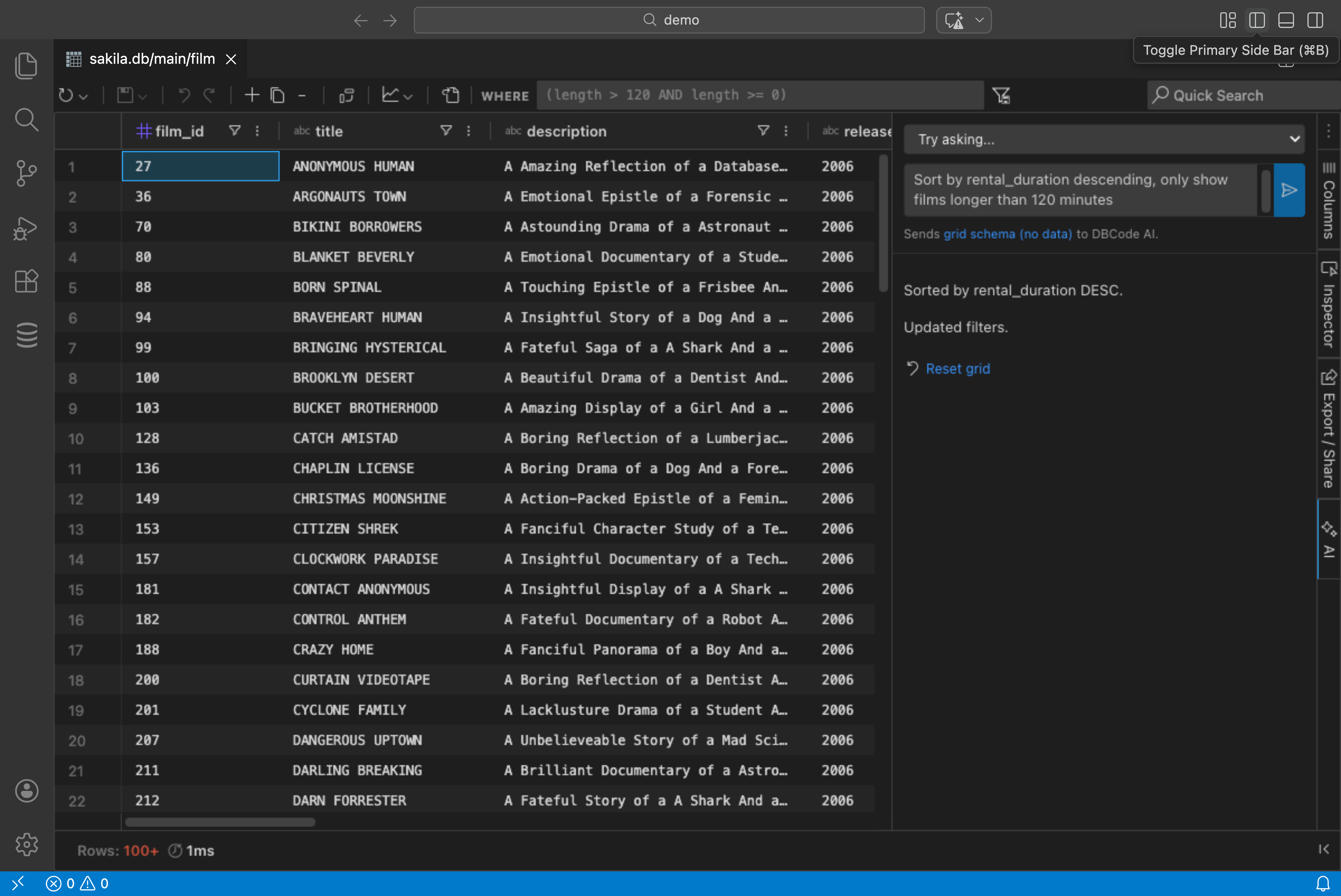
Getting Started
Section titled “Getting Started”- Open a table, or run a query so results appear in the data grid
- Open the AI Assist panel from the grid sidebar (sparkle icon)
- Type a natural language request and press Enter
AI Assist uses the same AI provider configured in your AI settings. Any model that supports structured JSON output works - including GitHub Copilot, OpenAI, Anthropic, Ollama, and custom providers.
How AI Assist Decides What To Do
Section titled “How AI Assist Decides What To Do”Whether AI Assist can write SQL depends on where the loaded data came from:
- When the data can be re-queried - an open table, or query results tied to a table - AI Assist writes SQL for data requests and applies grid or chart changes for presentation requests. SQL is used for anything about which data appears, because a query runs against the whole table on the database, not just the rows currently loaded in the grid.
- When the data can’t be re-queried - for example, the result of combining data client-side, or other computed data - SQL isn’t available. Data requests get a short explanation of what isn’t possible instead of a query. Presentation requests still work normally on the loaded rows. The panel shows a note: “The AI works on the loaded rows only - this data can’t be re-queried.”
Presentation Requests
Section titled “Presentation Requests”AI Assist works through AG Grid’s state API, so anything the grid supports can be controlled via natural language:
- Filter: “Only show orders over $100” or “Filter to US and UK customers”
- Sort: “Sort by date, newest first” or “Sort by revenue descending”
- Group: “Group by category” or “Group by country, then by city”
- Aggregate: “Sum the amounts per group” or “Show average price by category”
- Pivot: “Pivot by month” or “Pivot by quarter with revenue totals”
- Column visibility: “Hide the ID column” or “Only show name, email, and status”
- Column pinning: “Pin the name column to the left”
- Column sizing: “Make the description column wider”
- Charts: “Chart this as a bar chart” or “Create a pie chart of revenue by region”
Each change applies instantly and is logged as a turn in the conversation.
Example Conversation
Section titled “Example Conversation”You: "Sort by total_spend descending"→ Grid sorts the total_spend column in descending order
You: "Only show the top countries"→ Grid applies a filter to the country column
You: "Group by region and sum total_spend"→ Grid groups rows by region with aggregated totals
You: "Chart this as a bar chart"→ A bar chart opens with the current grouped dataData Requests
Section titled “Data Requests”When the loaded data can be re-queried, ask for different or additional data and AI Assist writes real SQL against the table you have open.
Conversational Follow-ups
Section titled “Conversational Follow-ups”AI Assist remembers the conversation, so follow-up requests refine the previous query instead of starting over. Ask for a weekly report, then follow up with “now monthly instead of weekly” or “only for the last quarter”, and the AI adjusts the existing SQL rather than rebuilding it from scratch.
Reviewing and Running SQL
Section titled “Reviewing and Running SQL”Every answer to a data request shows the generated SQL. Nothing runs automatically - you choose what happens next:
- Run here executes the query on the same connection and swaps the results into the grid in place. An AI results chip appears in the grid toolbar while AI-generated results are showing. Click the chip’s close button to restore the original table rows.
- Open in editor exports the SQL to a new editor tab instead of running it.
Fixing Failed Queries
Section titled “Fixing Failed Queries”If a run fails, the database error is shown directly in the conversation with a one-click Fix it button that asks the AI to correct the query using that error message.
Permissions
Section titled “Permissions”Running SQL from AI Assist follows the same statement permissions as running SQL from the editor. If your connection’s role requires confirmation for, or denies, statements like UPDATE or DELETE, those same rules apply here.
Context Awareness
Section titled “Context Awareness”When you open the AI Assist panel, it gathers what it needs to answer both kinds of requests:
- The grid’s structured schema - column names, data types, and available operations - so it can generate valid grid and chart changes
- The table’s schema DDL, plus any tables it has foreign key relationships with, when the data can be re-queried. If the AI needs more context, it can request the definitions of additional tables.
- The SQL dialect of the connection
- Your current filter and sort settings (including the values you filtered by), so the AI knows what you’re looking at
No row data is ever sent. The AI never sees your actual query results - only schema, operation definitions, and your current view settings.
Suggested Actions
Section titled “Suggested Actions”The panel suggests one-click prompts based on your current columns. Suggestions for presentation changes (summarizing, charting a metric, filtering by a common value) always appear; suggestions for data requests (cohort analysis, top-N rankings, monthly trends) only appear when the data can be re-queried.
Use the Reset grid button, next to New conversation at the bottom of the panel, to return the grid to its original state at any time.
Team Roles
Section titled “Team Roles”Access to AI Assist in the data grid is controlled by the Grid AI permission in team roles. If your role restricts it, the panel shows a restriction message instead of the AI Assist UI.
Privacy
Section titled “Privacy”AI Assist sends the grid’s structured schema (column names, data types, available operations) and, when the data can be re-queried, the table’s schema DDL (plus related tables, fetched as needed) and your current filter and sort settings to your configured AI provider. No table rows are ever sent. Queries only run against your database when you click Run here.
See AI Privacy and Security for more details on how DBCode handles AI data.