

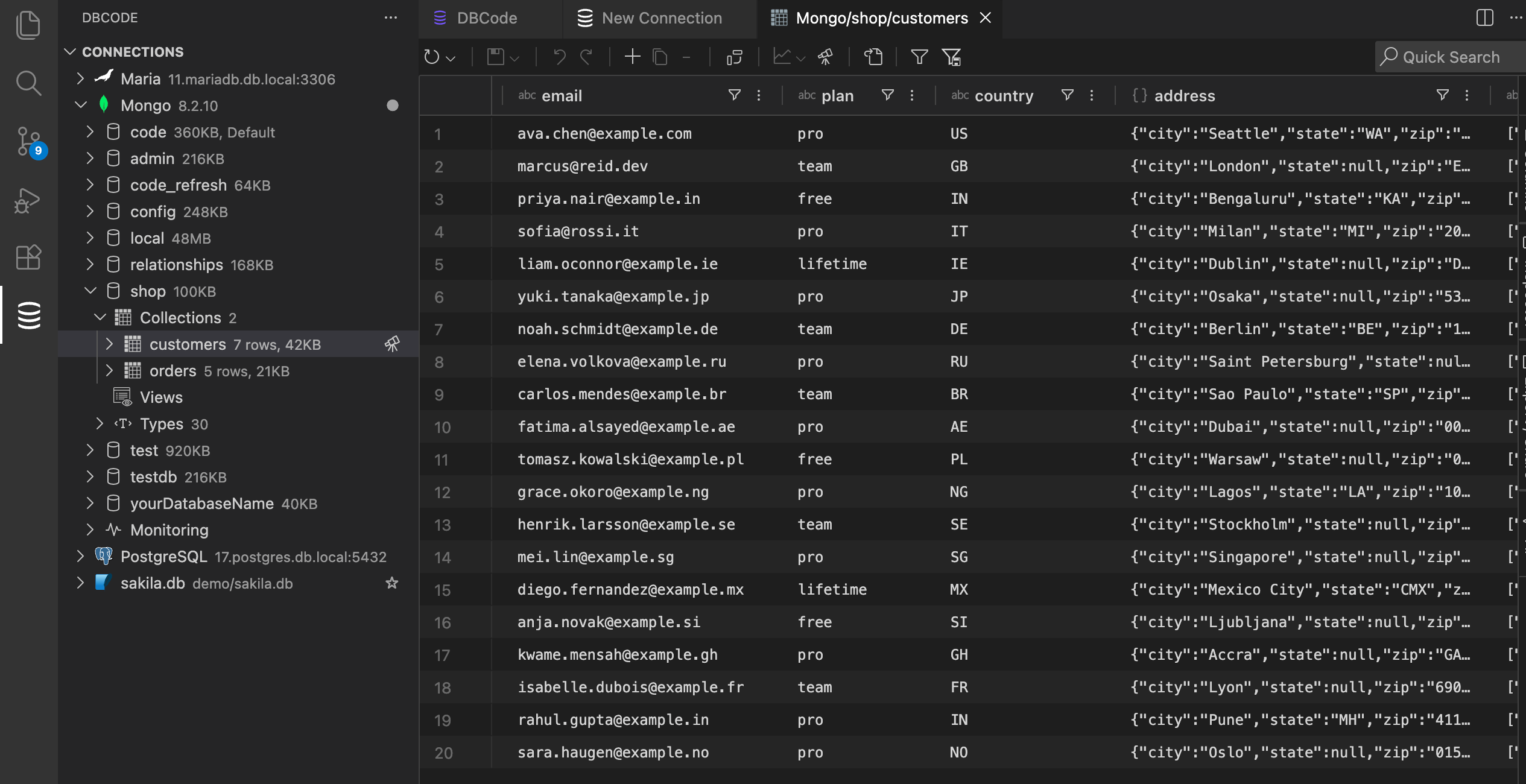
If you work with MongoDB, you probably keep Compass open in one window and mongosh in another. You edit a document in one, run a query in the other, and switch back to your code to change the app that reads it. Three contexts for one task.
DBCode puts all three inside VS Code.
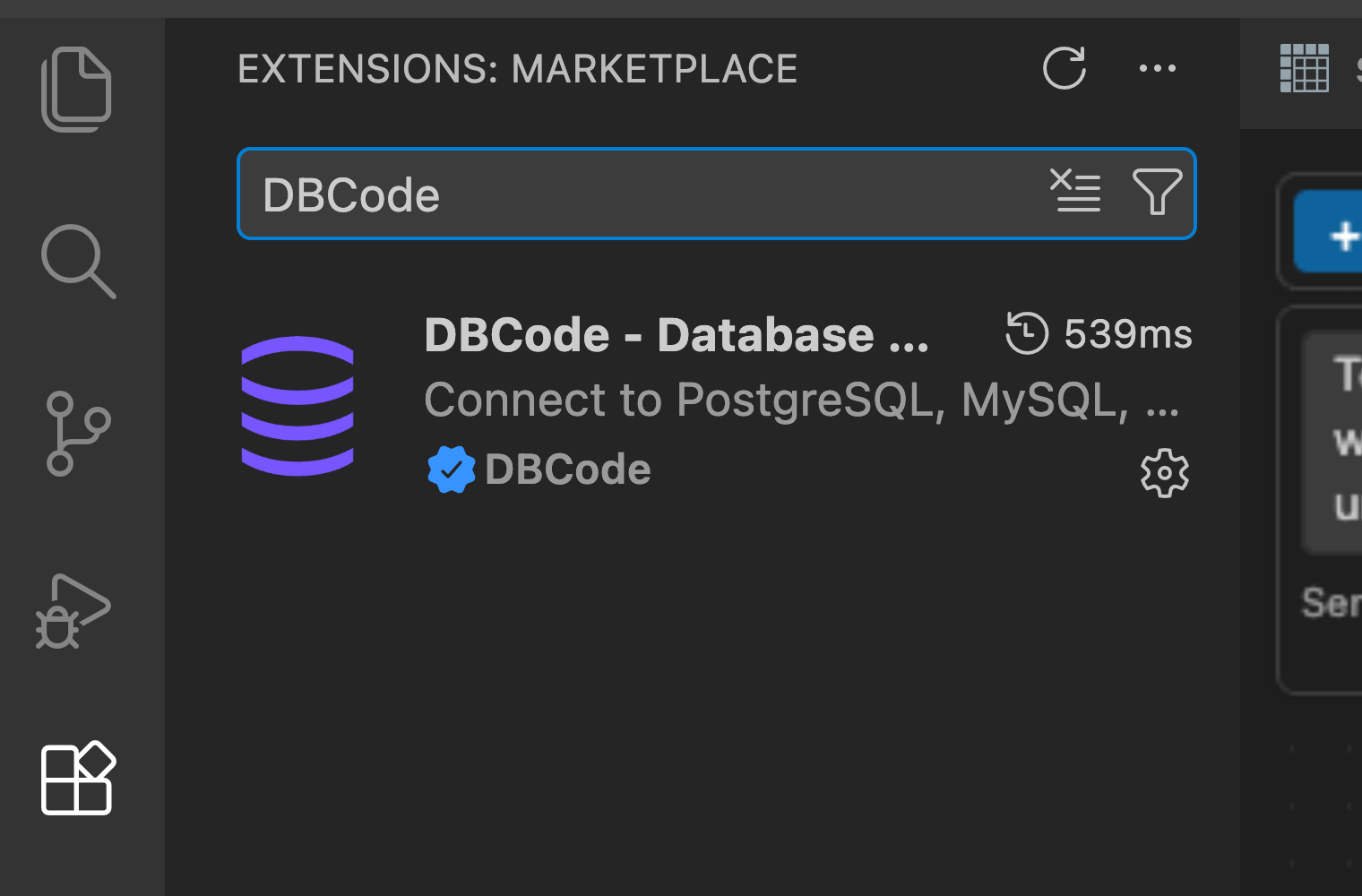
Install DBCode
Open the Extensions panel in VS Code. Search “DBCode”. Click Install.
DBCode also runs in Cursor, Windsurf, and other VS Code forks through OpenVSX.
Connect to MongoDB
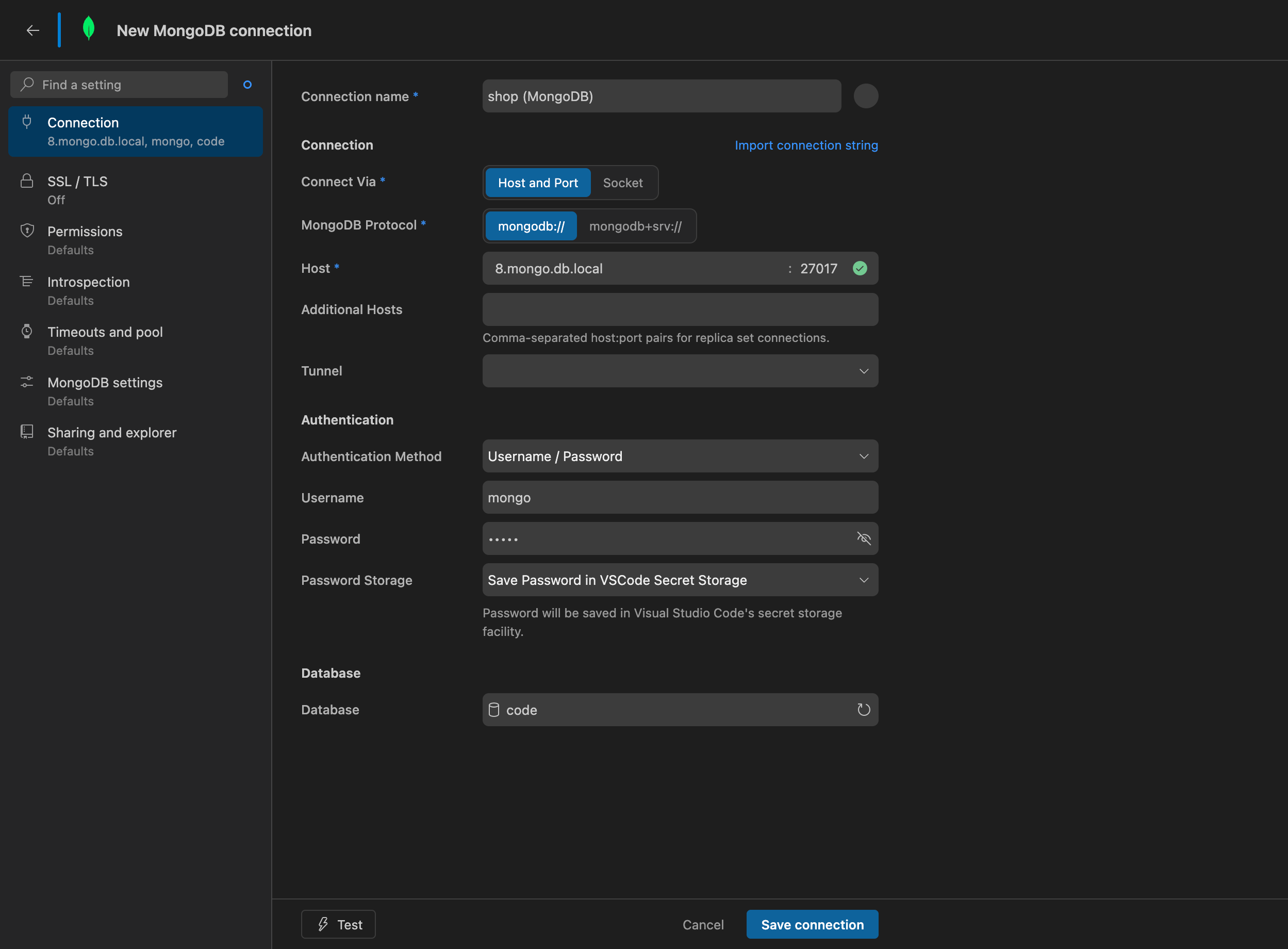
Click the DBCode icon in the sidebar, then “Add Connection”. Pick MongoDB. Paste a connection string, or fill in the host, port, and credentials by hand.
On MongoDB Atlas, grab the connection string from your cluster’s Connect dialog and paste it in. DBCode handles mongodb+srv:// strings, TLS included.
DBCode supports the authentication methods you already use:
- Username and password (SCRAM)
- X.509 client certificates
- LDAP
- Kerberos single sign-on
The MongoDB docs page covers each auth method in detail.
Click save. Your databases, collections, and documents appear in a tree.
Browse Collections and Edit Documents
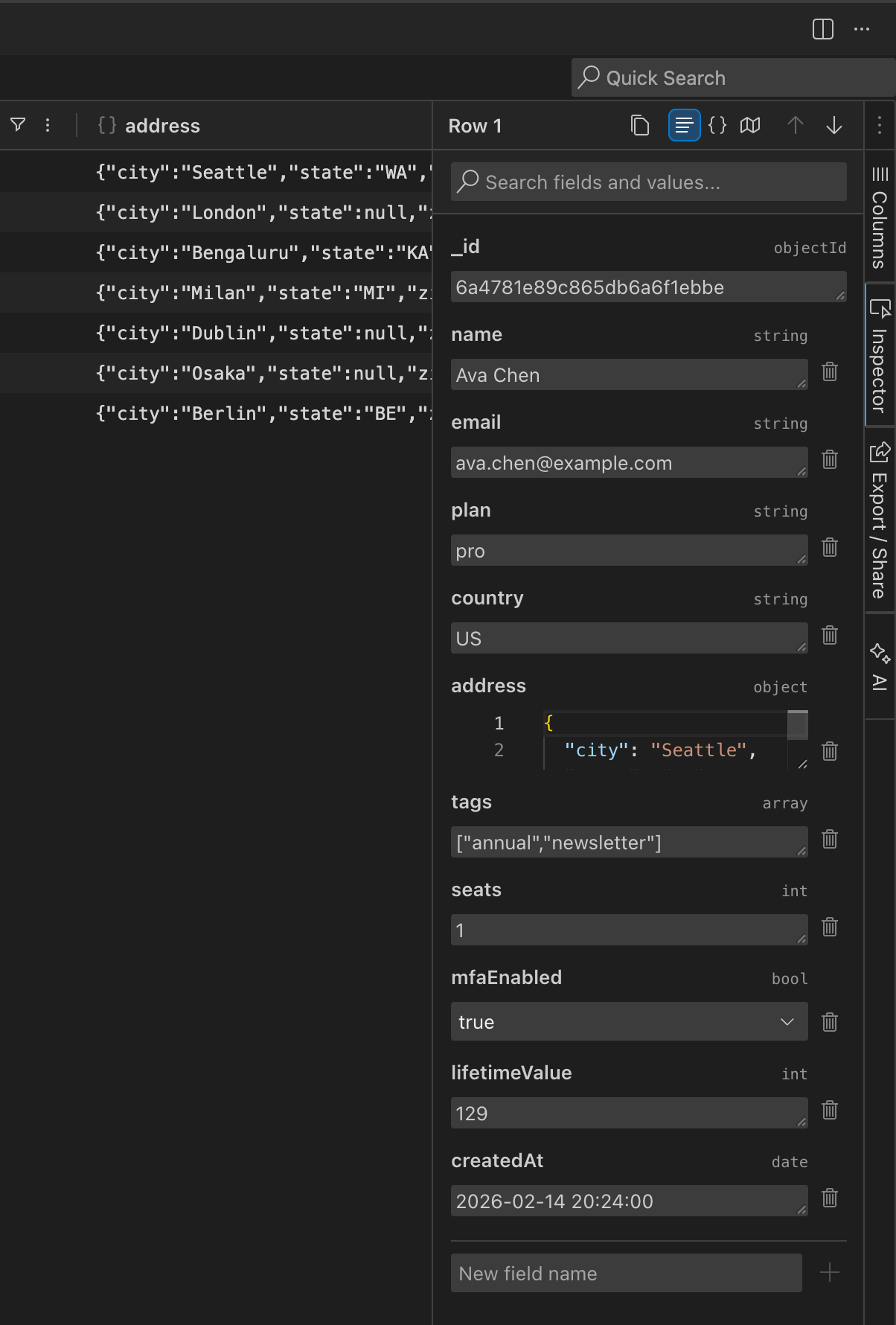
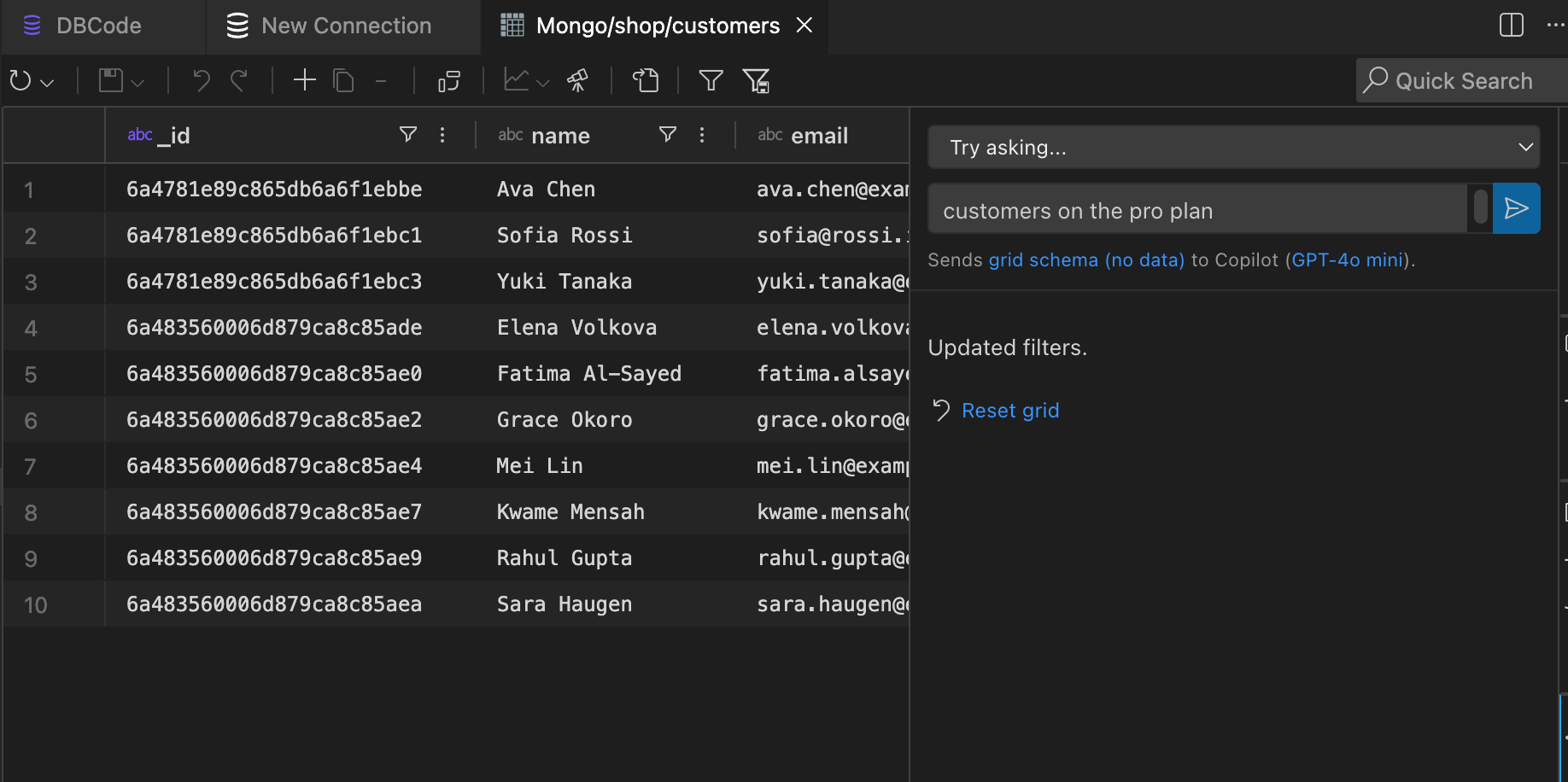
Click any collection to see its documents right away. Filter, sort, and group them with a few clicks, the same way you would a SQL table.
To change a document, open it in the JSON editor, edit the fields, and apply. DBCode validates the structure and respects MongoDB’s BSON types, so an ObjectId stays an ObjectId and a date stays a date.
Write MongoDB Queries (or Let Copilot Do It)
The editor autocompletes collection and field names from your schema as you type, so find queries and aggregation pipelines come together fast.
Or skip writing them. Open Copilot in agent mode and ask: “find every order over $100 from the last week.” DBCode gives Copilot tools to list your connections, read your collection schemas, and run queries, so it works against your real collections instead of guessing names. The same tools are available to other AI clients through MCP.
Watch MongoDB Change Streams in Real Time
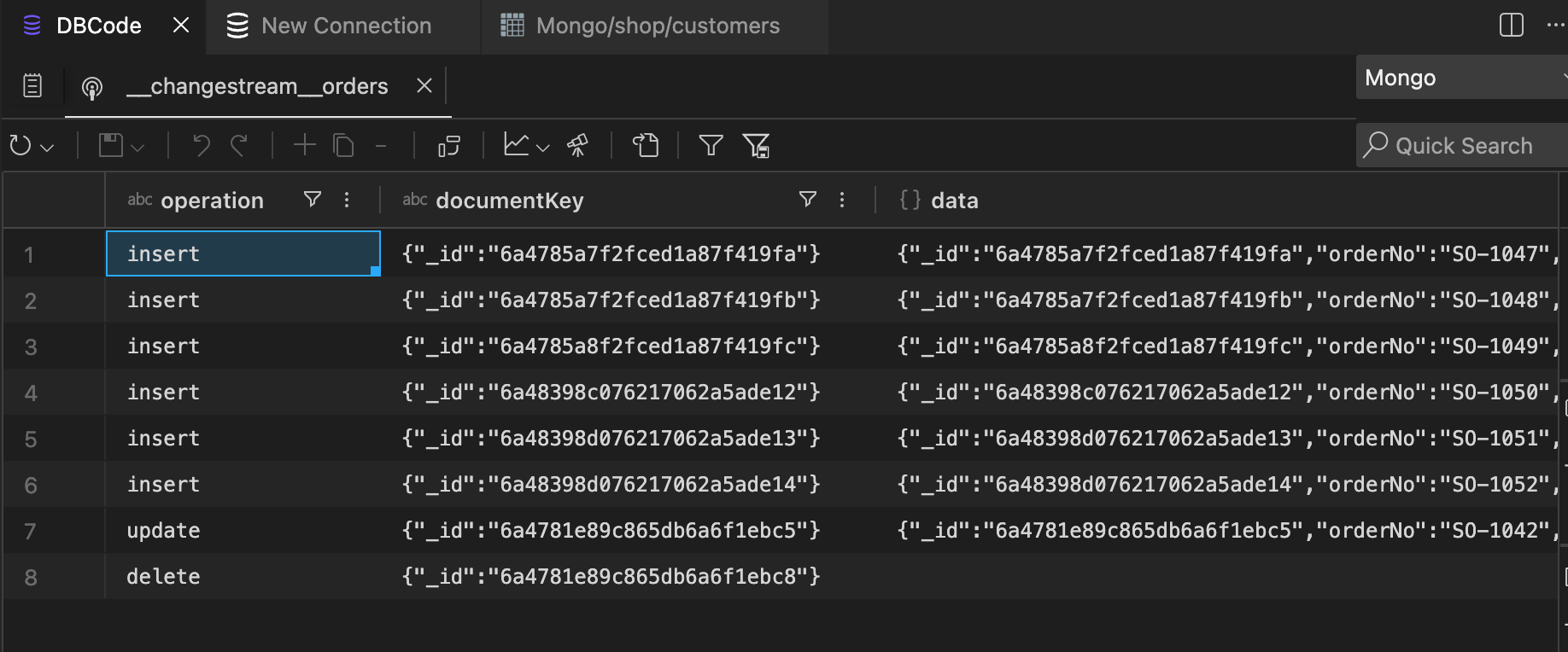
This is the part Compass makes hard. Right-click a collection and select Subscribe, or run db.collectionName.watch() in the editor. DBCode opens a change stream and shows every insert, update, and delete in real time.
It’s the fastest way to confirm your app writes what you think it writes. Change streams need a replica set or a sharded cluster, and live streaming is a Pro feature.
Not Just MongoDB
DBCode speaks 90+ databases through one interface. Postgres today, MongoDB now, Snowflake next week. You learn the tool once and reuse it everywhere.
Works on Windows, macOS, and Linux.