

To give Claude Code access to your database, save the connection in DBCode and run claude mcp add dbcode -- dbcode mcp. Claude Code then sees every connection you have saved, Postgres, MySQL, SQL Server, or any of 100+ databases, and can read schemas and run queries under the limits you set on each connection.
No connection string goes into .mcp.json. One server entry covers every database.
What you need
- DBCode installed in VS Code, Cursor, or another VS Code editor (install).
- Your database saved as a connection in DBCode. The password stays there.
- Claude Code.
1. Install the DBCode CLI
Open the command palette in your editor and run DBCode: Install CLI. That puts dbcode on your path. You only do this once.
Prefer not to install it? The @dbcode/mcp npm package does the same job and runs the newest DBCode installed on the machine. It needs Node.js 22.14 or newer.
2. Add DBCode to Claude Code
claude mcp add dbcode -- dbcode mcpOr, with the npm package:
claude mcp add dbcode -- npx -y @dbcode/mcpThat writes the local scope, for the current project. Two other scopes:
--scope usermakes DBCode available in every project on the machine.--scope projectwrites the entry to.mcp.jsonso teammates get it too.
The project entry looks like this, and it is safe to commit:
{ "mcpServers": { "dbcode": { "command": "dbcode", "args": ["mcp"] } }}No host, no user, no password. Each teammate’s Claude Code reads the connections saved in their own DBCode. Each teammate runs DBCode: Install CLI once, or commit the npx -y @dbcode/mcp form, which only needs Node.
3. Check it’s connected
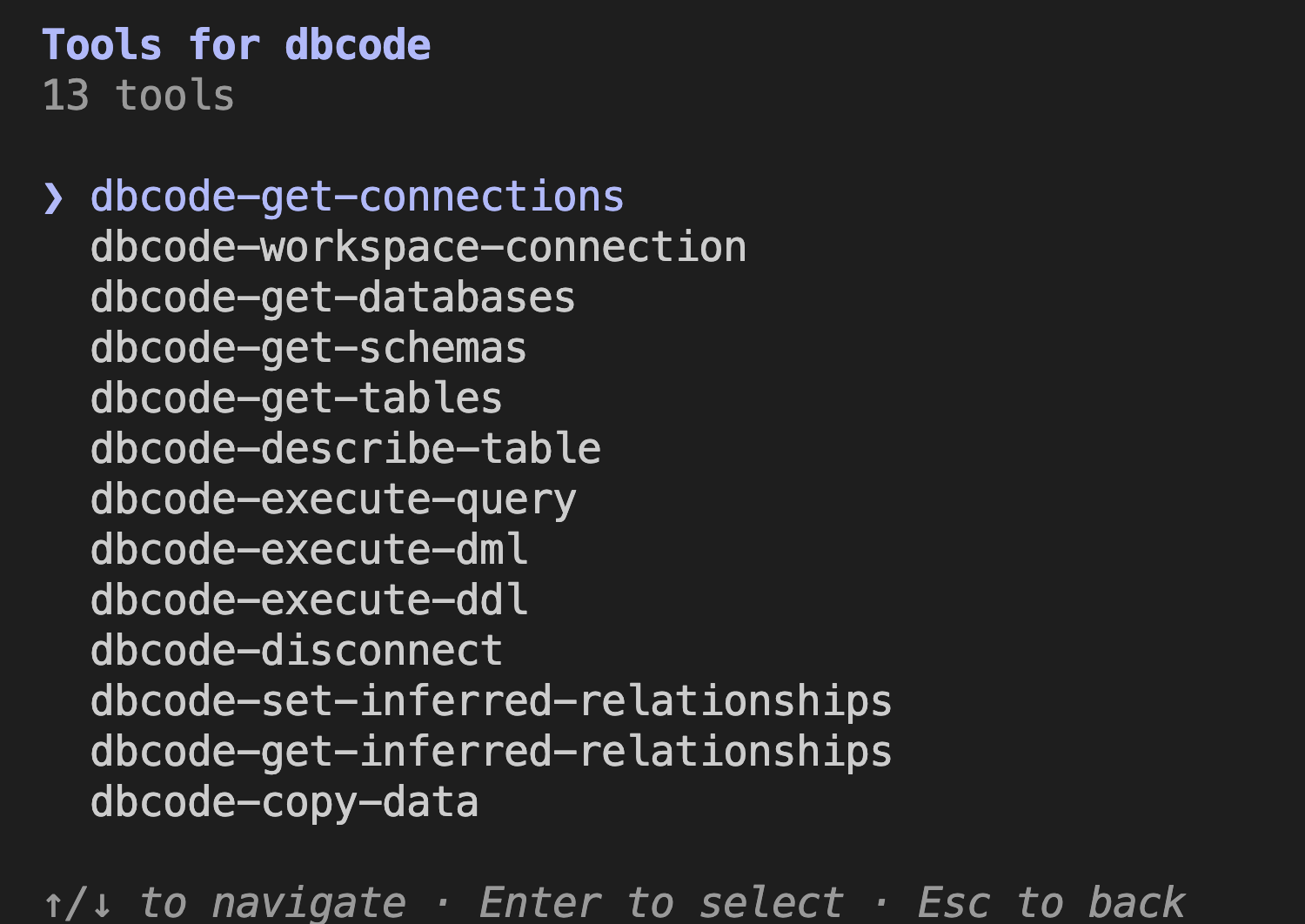
claude mcp listInside a session, /mcp shows DBCode and its tools.
4. Ask about your data
Start with your connections, then point Claude Code at the one you want:
“List my dbcode connections. Then read the schema of the app database on my Postgres Dev connection and show me the ten most recent orders with their customer emails.”
Claude Code calls DBCode’s tools to list connections, read tables and columns, and run the query against your real table names. The tools include:
dbcode-get-connections,dbcode-get-databases,dbcode-get-tablesfor discovery and schemadbcode-execute-queryfor readsdbcode-execute-dmlanddbcode-execute-ddlfor writes and schema changes, kept as separate tools so a read stays a read
Naming the connection and database in the prompt saves Claude Code a guess when you have several.
Lock it down before you point it at anything real
Claude Code gets the same permissions you have on a connection unless you narrow them. Open the connection in DBCode and look at two settings:
- Role and read-only mode. A Production role or the Read Only toggle limits what anyone, you or an agent, can run on that connection. Free.
- AI access. Give agents their own, narrower role: Read-only (
SELECTonly), Collaborator (asks before writes, never runsDROPorTRUNCATE), or Blocked. Assigning an AI role is a Pro feature.
Missing WHERE detection also catches an UPDATE or DELETE with no WHERE clause, whoever wrote it. For the full setup on a production database, see how to let an AI agent query production safely.
Editor open or closed
dbcode mcp doesn’t need the editor running. On start it looks briefly for an editor window that runs DBCode’s bridge (Windsurf, Kiro, and Antigravity do, once you accept DBCode’s setup offer). If it finds one, the session goes through that editor, with its approval prompts. If not, the CLI serves the tools itself.
A few things differ when it runs standalone:
- Approvals. Where DBCode would ask you first, it asks through the client using MCP elicitation, which Claude Code supports. A client without elicitation gets the statement refused, with a message that says why.
- Copy data and inferred relationships need the editor. The tools are listed and refuse with a reason.
- Some connections can’t open from the CLI, such as cloud provider connections and passwords that come from a prompt. Run
dbcode connectionsand check theclicolumn.
Roles, masking, and the row limit apply exactly as they do in the editor. Details: MCP without the editor.
More than one editor on the machine
If DBCode has connections in more than one editor, tell the CLI which one to read:
claude mcp add dbcode -- dbcode mcp --app Cursor--app Code, --app Windsurf, and so on work the same way. --profile picks an editor profile, and --workspace points at a different folder’s workspace connections.
Why not a Postgres-only MCP server?
Most guides for this have you install a server for one database and paste a connection string into .mcp.json. That works, and those servers have their strengths (see DBCode vs standalone database MCP servers). The difference here is that you manage connections in one place, the credentials never land in a config file, and the same entry covers MySQL on Monday and SQL Server on Tuesday.
FAQ
How do I give Claude Code read-only access to Postgres?
Save the Postgres connection in DBCode, set its AI access to Read-only in the connection editor, then run claude mcp add dbcode -- dbcode mcp. Claude Code can run SELECT and read the schema, and every write is denied before it reaches the database. For a hard guarantee, also connect with a database user that only has SELECT grants.
Does Claude Code need VS Code to be open?
No. dbcode mcp reads the connections saved on your machine and serves the tools itself when no editor is running. You set the connections up once in the editor; after that the editor can stay closed.
Where does the database password go?
It stays in DBCode. The MCP entry is just the command dbcode mcp, with no host, user, or password, so .mcp.json holds nothing secret.
Can I commit .mcp.json with DBCode in it?
Yes. claude mcp add dbcode --scope project -- dbcode mcp writes an entry with no credentials. Each teammate gets the connections saved in their own DBCode. Each teammate runs DBCode: Install CLI once, or commit the npx -y @dbcode/mcp form, which only needs Node.
Does it work with MySQL, SQL Server, and MongoDB, not just Postgres?
Yes. The same server covers every connection you have saved in DBCode, across 100+ databases. On MongoDB the agent can send native syntax like db.orders.find(...) as well as SQL.
How do I add DBCode to Claude Desktop instead?
Add the same entry to claude_desktop_config.json under mcpServers: a dbcode server with command dbcode and args ["mcp"]. Restart Claude Desktop.