

To give the agent in Windsurf, Kiro, or Antigravity access to your database, install DBCode from the editor’s Extensions view and choose Enable when it asks to let the agent query your databases. DBCode adds itself to the editor’s MCP configuration, and after a reload the agent can list your saved connections, read schemas, and run queries, under the limits you set on each connection.
No connection strings in a config file, and one setup covers Postgres, MySQL, SQL Server, MongoDB, and the rest of 100+ databases.
How it works in all three
These editors read MCP servers from their own configuration file. DBCode handles that for you:
- Install DBCode from the Extensions view (DBCode publishes every release to Open VSX). Or start from the install page.
- The first time DBCode loads, choose Enable when DBCode asks whether the editor’s agent may query your databases. DBCode adds its entry to the editor’s MCP configuration. Servers already in that file are left alone.
- Save a connection in DBCode’s panel and test it.
- Reload the agent (or the window). DBCode now appears in the agent’s MCP server list.
- Ask about your data:
“List my dbcode connections. Read the schema of the app database on Postgres Dev, then show me signups per day for the last two weeks.”
Missed the prompt, or removed the entry? Run DBCode: Enable AI Tools in This Editor from the command palette.
Windsurf
Windsurf’s agent picks DBCode up from its MCP configuration once you choose Enable. Reload the agent and DBCode is in its MCP server list.
Kiro
Kiro installs extensions from Open VSX, so DBCode is in its Extensions view. The prompt looks like this:
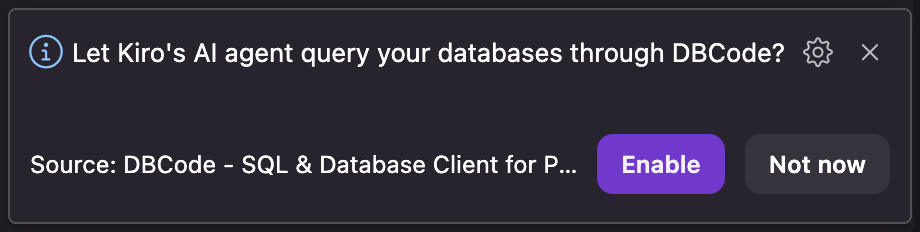
Choose Enable and DBCode adds a dbcode entry to ~/.kiro/settings/mcp.json. The entry runs DBCode’s own CLI with mcp, so there’s no host or password in the file. Reload the agent and DBCode is listed with Kiro’s other MCP servers.
Antigravity
Same flow in Google Antigravity. The prompt reads:
Let Antigravity’s AI agent query your databases through DBCode?
Choose Enable, reload the agent, and DBCode appears in its MCP server list.
Several windows open
Each editor window advertises itself to the agent. Whichever DBCode window was most recently active serves the agent’s requests.
Keep the agent in bounds
The agent gets the same access you have on a connection unless you narrow it. Open the connection in DBCode and set AI access:
- Read-only:
SELECTand schema reads only. - Collaborator: reads freely, asks before inserts, updates, and deletes, never runs
DROPorTRUNCATE. - Blocked: listed, but every tool call is rejected.
Sessions from these editors go through the DBCode window, so when a role says to ask first, you approve or deny the statement before it runs. Assigning an AI role is a Pro feature. The MCP server and the connection’s own Read Only mode and roles are free. For production, see how to let an AI agent query production safely.
Using Claude Code in the same editor
Claude Code in the integrated terminal can use the same connections. Run DBCode: Install CLI, then:
claude mcp add dbcode -- dbcode mcp --app WindsurfUse your editor’s name with --app. With the editor open, the session goes through it. More in how to give Claude Code access to your database.
DBCode in Windsurf · DBCode in Antigravity · Full MCP documentation
FAQ
How do I add a database MCP server to Kiro?
Install DBCode from Kiro's Extensions view, then choose Enable when DBCode asks to let Kiro's agent query your databases. DBCode adds itself to Kiro's MCP configuration. Reload the agent and DBCode is in its MCP server list.
How do I connect Antigravity's agent to Postgres?
Install DBCode in Antigravity, save your Postgres connection in it, and accept the prompt to let Antigravity's agent query your databases through DBCode. The agent then has tools to read the schema and run queries on that connection.
I dismissed DBCode's prompt. How do I get it back?
Run DBCode: Enable AI Tools in This Editor from the command palette. It adds DBCode to the editor's MCP configuration again.
Do I have to put my database password in mcp_config.json?
No. The password stays in DBCode's connection settings. The agent reaches the database through DBCode, so its MCP configuration has no connection string.
Can I stop the agent writing to the database?
Yes. Set the connection's AI access to Read-only in DBCode's connection editor and every write is denied before it reaches the database. The limit is checked inside DBCode, so it applies the same way in all three editors.