
Notebooks
Cell Locking
Cell locking allows you to bind individual cells in a notebook to specific database connections, databases, and optionally schemas. This enables you to work with multiple data sources within a single notebook while maintaining consistency for specific analyses.
What is Cell Locking?
Section titled “What is Cell Locking?”Cell locking ties individual notebook cells to specific database connections, providing:
- Multi-Source Analysis: Query different databases within the same notebook
- Connection Consistency: Lock critical cells to prevent accidental connection changes
- Schema Specificity: Optionally lock cells to specific schemas within a database
- Flexible Workflows: Change the notebook’s default connection while keeping certain cells locked
When to Use Cell Locking
Section titled “When to Use Cell Locking”Cross-Database Analysis
Section titled “Cross-Database Analysis”- Compare data across development, staging, and production environments
- Query different database systems (PostgreSQL, MySQL, etc.) in the same notebook
- Analyze historical data stored in separate archives
Mixed Environment Workflows
Section titled “Mixed Environment Workflows”- Lock reporting cells to production while keeping exploratory cells flexible
- Maintain reference data queries locked to specific connections
- Ensure compliance queries always run against the correct database
Schema-Specific Operations
Section titled “Schema-Specific Operations”- Lock cells to specific schemas for multi-tenant applications
- Maintain separation between different application modules
- Work with multiple schemas within the same database connection
How to Lock a Cell
Section titled “How to Lock a Cell”Locking and unlocking cells is simple and intuitive:
- To Lock: Click the open lock icon in the cell status bar.
- To Unlock: Click the closed lock icon.
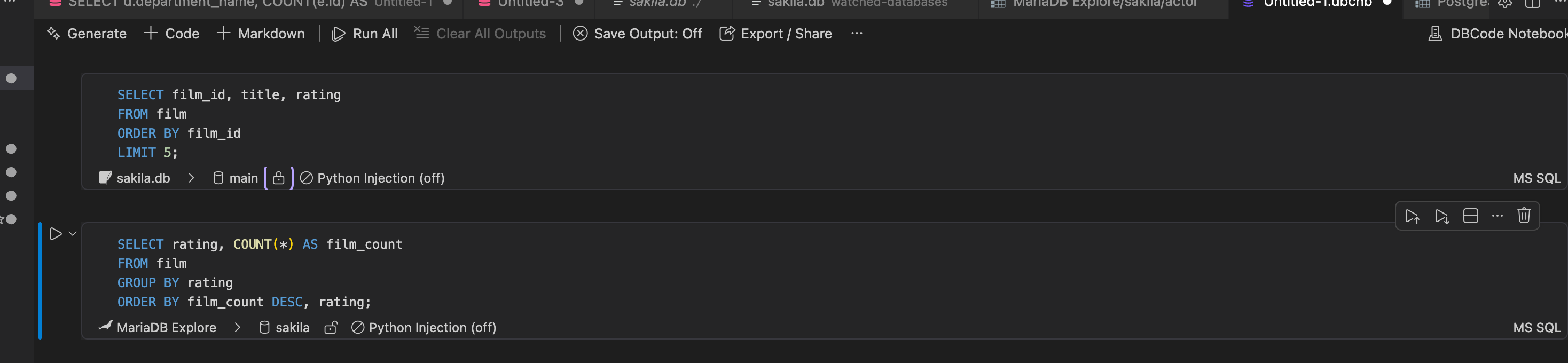
When you lock a cell:
- The cell locks to the currently selected connection, database, and schema
- The lock icon changes to a closed lock to indicate the cell is locked
- The cell will always use this specific connection for execution
When you unlock a cell:
- The lock icon changes to an open lock
- The cell will use the notebook’s default connection
Managing Locked Cells
Section titled “Managing Locked Cells”Viewing Lock Status
Section titled “Viewing Lock Status”Check if a cell is locked:
- Locked: Closed lock icon in the cell status bar
- Unlocked: Open lock icon in the cell status bar