
DataRead and explore
Row inspector
Inspect any row in three ways — as an editable form, a JSON document, or plotted on an interactive map when geography is present. The Inspector also supports multi-row editing for applying changes across multiple selected rows at once.
View Modes
Section titled “View Modes”- Form: View a row as labeled fields. Edit values when supported by your connection and permissions, then save changes.
- JSON: View or edit the row as JSON. For document databases like MongoDB, edit the full document structure directly.
- Map: If the row includes geographic data, visualize it on an interactive map.
Form View
Section titled “Form View”Use the Inspector’s Form view to review and edit the current row in a form layout.
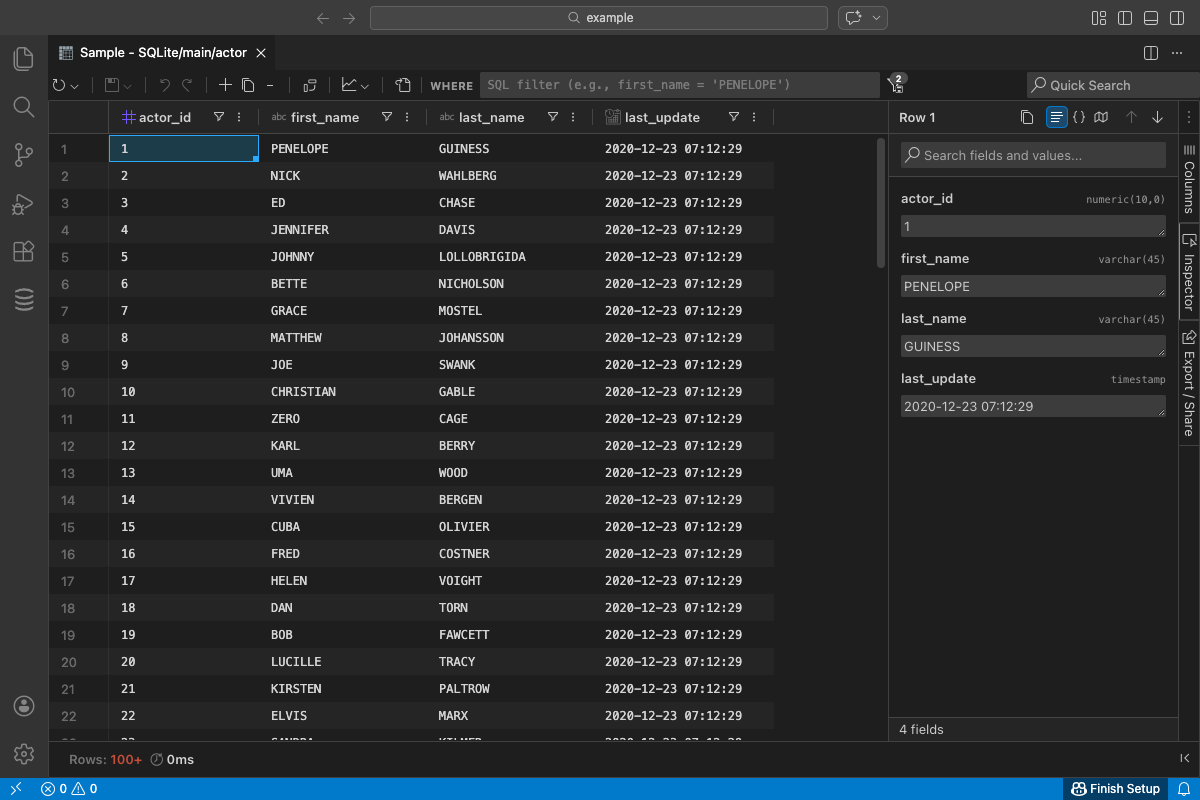
- Edit supported fields inline; nulls can be set the same way you would in the grid.
- Save or discard changes using the standard save/apply controls.
- See the Data Editing guide for broader editing details: Data Editing
JSON View
Section titled “JSON View”Switch to JSON to view the current row as formatted JSON.
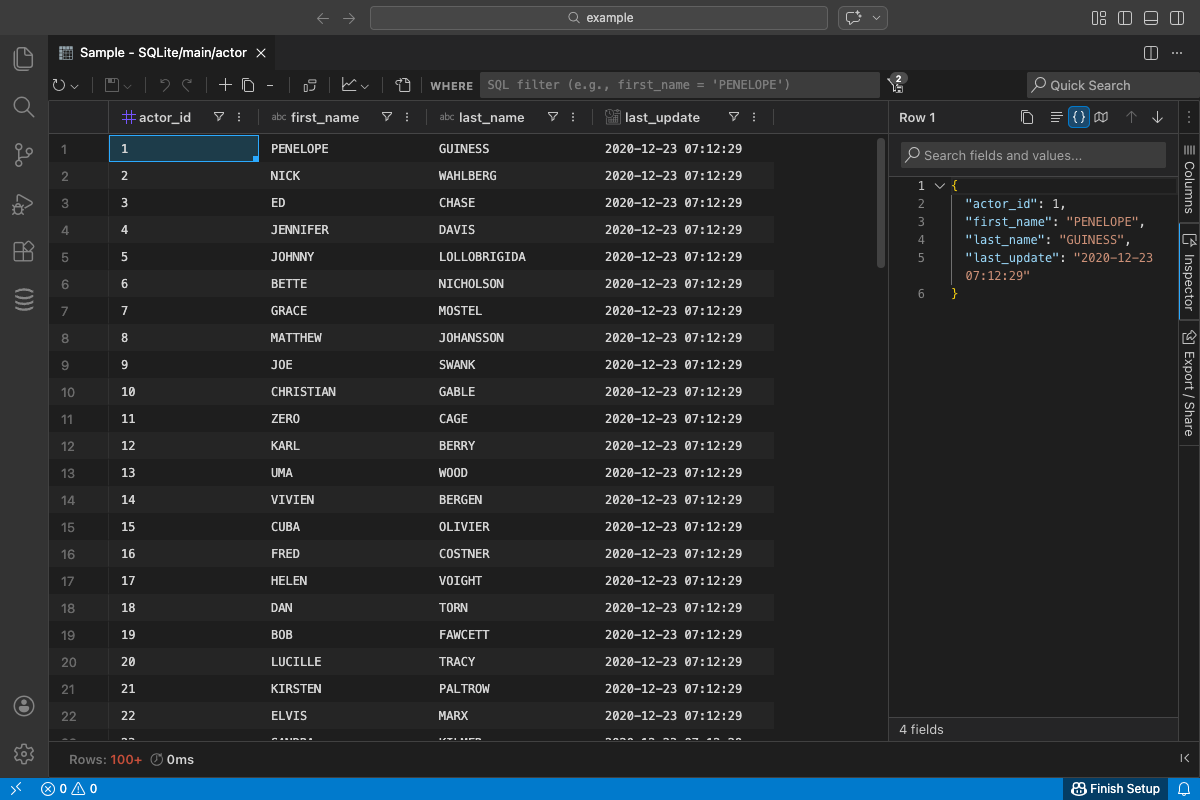
- Useful for debugging, copying values, and comparing complex objects.
- Preserves types where possible to mirror how the row is returned from the database.
JSON Editing (Document Databases)
Section titled “JSON Editing (Document Databases)”For document databases like MongoDB, Firebase, and other NoSQL stores, JSON view becomes fully editable:
- Edit the complete document structure directly in the JSON editor
- Add new fields, remove fields, or modify nested objects and arrays
- Full syntax highlighting and validation as you type
- Changes are tracked and can be saved or discarded like form edits
Map View (Geography)
Section titled “Map View (Geography)”Map view plots geographic values from the current row on an interactive map.
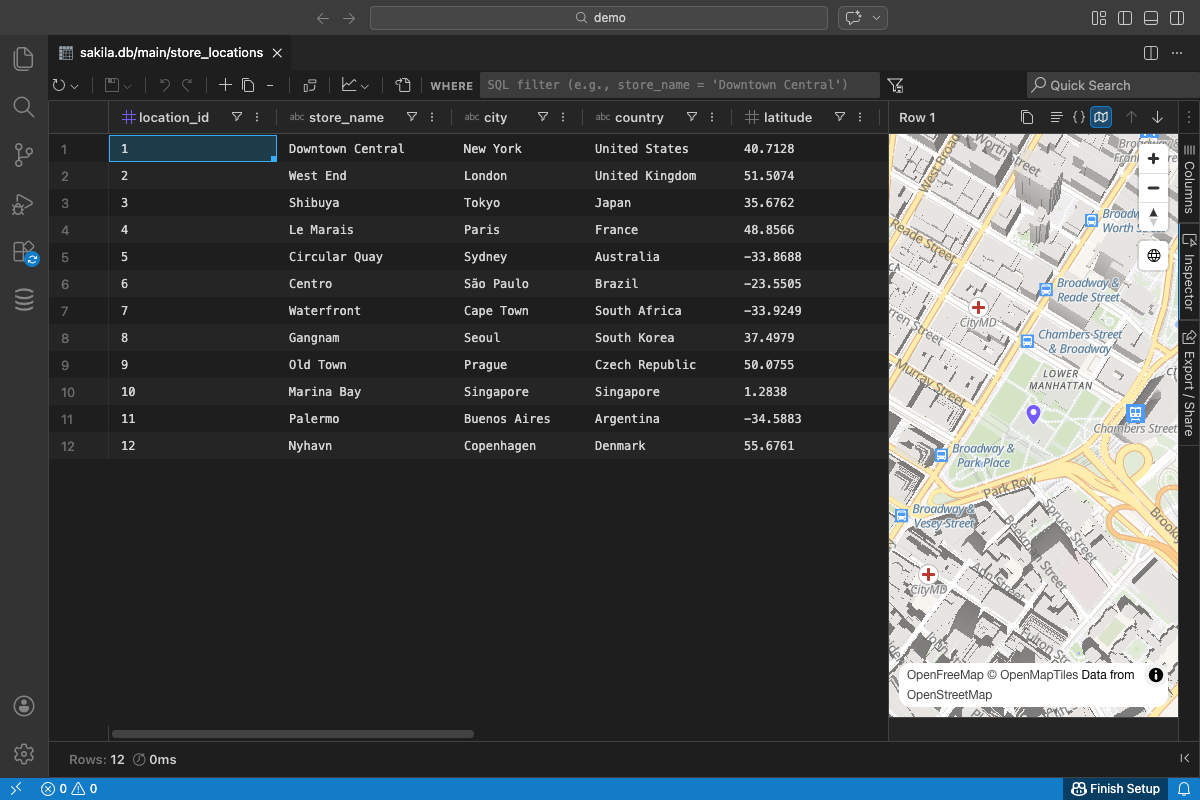
- Automatic detection of geography/geometry columns when you open Map view.
- If none are detected, pick one or more columns via a quick selection dialog.
- Supports common formats such as WKT, GeoJSON, and simple coordinate pairs.
- Interactive controls for pan, zoom, and fit-to-bounds; updates as you navigate rows.
Notes:
- Requires an active internet connection to load map tiles and styles.
- The map uses vector tiles and WebGL for smooth rendering with larger data.
- Only columns you select (or that are auto-detected) are visualized.
Multi-Row Editing
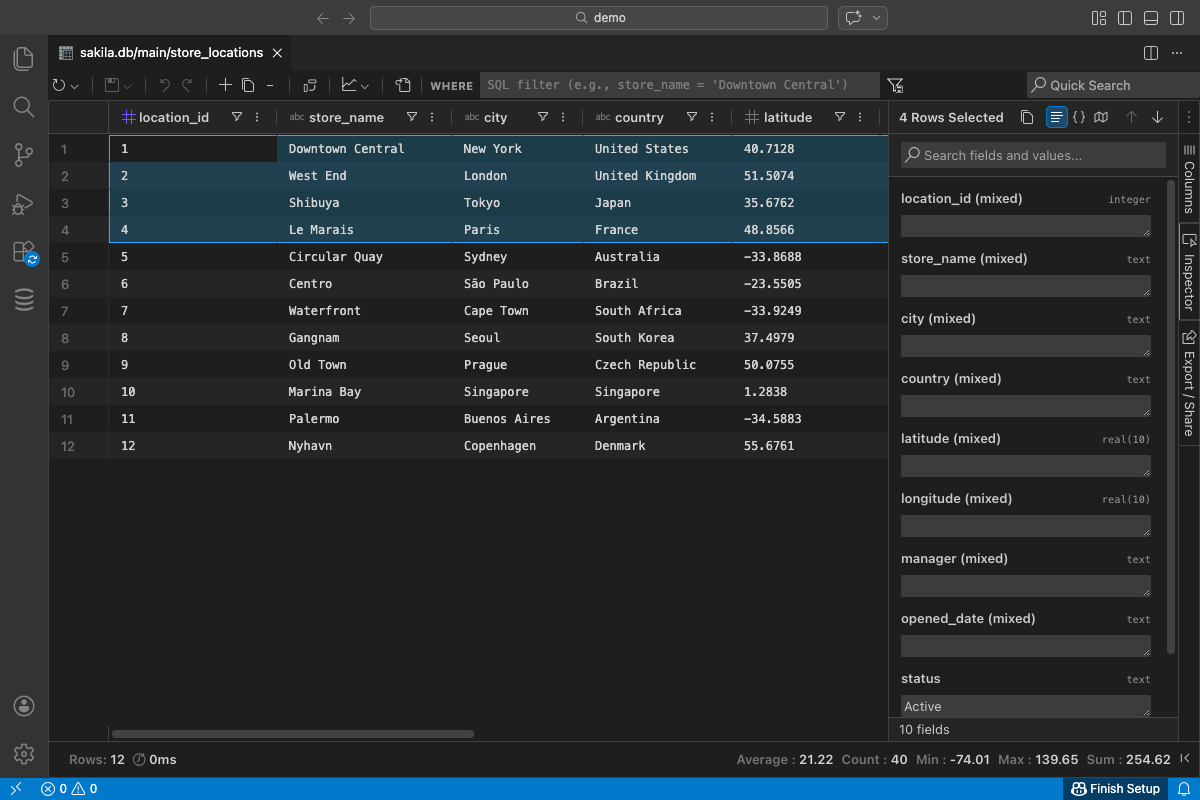
Section titled “Multi-Row Editing”The Inspector supports editing a field value across multiple rows simultaneously. This is useful for bulk updates like setting a status, category, or timestamp across many records.
How to Edit Multiple Rows
Section titled “How to Edit Multiple Rows”- In the data grid, select multiple rows using Shift+Click or Ctrl/Cmd+Click
- Open the Inspector panel - it will show the first selected row
- Edit a field value in the Form view
Undo Support
Section titled “Undo Support”Multi-row edits are grouped as a single undo operation. When you undo, all rows are reverted together rather than one at a time.
How To Use
Section titled “How To Use”- Open a table or query results in the data grid.
- Open the Inspector from the right hand tool panel and navigate to a row of interest.
- Use the Inspector title bar to toggle Form, JSON, or Map.
- For Map view, confirm or select the column(s) containing geographic data if prompted.
- To edit multiple rows, select them in the grid first, then use the Inspector’s multi-row editing features.
Troubleshooting
Section titled “Troubleshooting”- No map appears: Ensure the selected column contains a valid geographic value (e.g., WKT, GeoJSON, or coordinates).
- Nothing detected automatically: Use the prompt to manually select the appropriate column(s).
- Data not editable: Check connection roles/permissions or use the grid or SQL to make changes.