
AI
AI Assist for Query Builder
The Query Builder includes an AI input bar that lets you describe what you want in plain English. The AI reads your current query model and database schema, then updates the visual canvas — adding tables, joins, columns, filters, and grouping automatically.
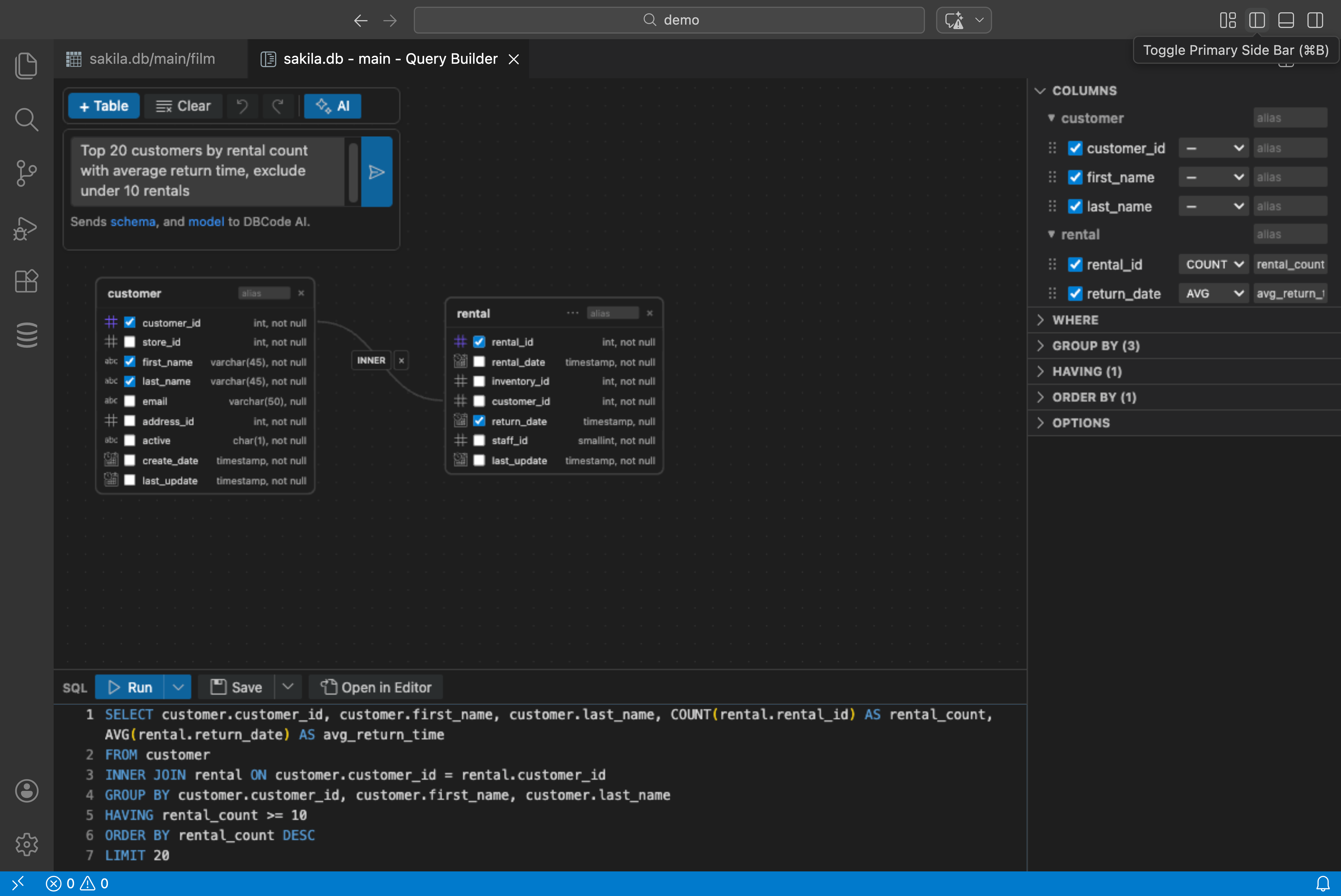
Using AI in the Query Builder
Section titled “Using AI in the Query Builder”- Open the Query Builder from any database
- Type a natural language request in the input bar at the top
- Press Enter
- The canvas, config panel, and SQL preview all update to reflect the AI’s changes
You can undo any AI change with Ctrl+Z / Cmd+Z.
What You Can Do
Section titled “What You Can Do”Build from Scratch
Section titled “Build from Scratch”Start with an empty canvas and describe what you need:
- “Show me all customers with their order totals”
- “List products with prices over 50, sorted by name”
- “Find employees hired in the last year with their department names”
The AI selects appropriate tables, configures joins based on foreign key relationships, picks relevant columns, and adds filters.
Modify an Existing Query
Section titled “Modify an Existing Query”With tables already on the canvas, ask for changes:
- “Add a date filter for last month”
- “Change to LEFT JOIN”
- “Group by category and sum the amounts”
- “Remove the email column”
- “Add an ORDER BY on total descending”
- “Limit to 100 rows”
The AI preserves your existing query and applies only the requested changes.
Aggregate and Analyze
Section titled “Aggregate and Analyze”- “Show total sales by region”
- “Count orders per customer”
- “Average price by category, only categories with more than 10 products”
The AI automatically configures GROUP BY, aggregate functions, and HAVING clauses.
What Gets Sent to the AI
Section titled “What Gets Sent to the AI”The AI receives:
- Schema DDL — CREATE TABLE statements for the tables in your connected database (column names, types, keys, and relationships)
- Current query model — The JSON representation of your visual query (tables, joins, columns, filters, grouping — no actual data)
- Your prompt — The natural language instruction you typed
No row data is ever sent. The AI works with schema structure and your query model only.
How It Works
Section titled “How It Works”- Your natural language request is sent to the configured AI provider along with the schema DDL and current query model
- The AI returns an updated QueryModel as JSON (not SQL)
- The Query Builder validates the response and applies it to the canvas
- Tables, joins, columns, filters, and all configuration update visually
- The SQL preview regenerates from the updated model
The AI returns a complete query model, not a diff — so the entire visual state updates at once. This makes it easy to undo with a single Ctrl+Z.
AI Provider
Section titled “AI Provider”The Query Builder uses the same AI provider configured in your AI settings. Any model that supports structured JSON output works — including GitHub Copilot, OpenAI, Anthropic, Ollama, and custom providers.
See AI Privacy and Security for details on how DBCode handles AI data.