
DB Explorer
Quick Open
The Quick Open feature provides fast, keyboard-driven navigation through your database connections, schemas, and objects. Instead of clicking through the DB Explorer tree, you can use Quick Open to jump directly to tables, views, procedures, and other database objects.
Opening Quick Open
Section titled “Opening Quick Open”Use the keyboard shortcut to open Quick Open:
- Mac: Ctrl + Cmd + O
- Windows/Linux: Ctrl + Win + O
You can also access it via the Command Palette (Cmd/Ctrl + Shift + P) and search for “DBCode: Quick Open”.
How It Works
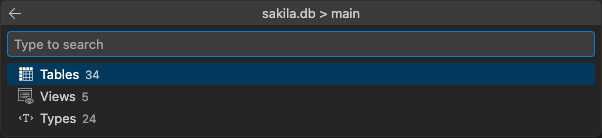
Section titled “How It Works”Quick Open presents a hierarchical picker that lets you navigate through:
- Connections - Your saved database connections
- Databases - Available databases within a connection
- Schemas - Schemas within a database (where applicable)
- Containers - Object types like Tables, Views, Procedures, Functions
- Objects - Individual tables, views, and other database objects
Navigation
Section titled “Navigation”- Use the arrow keys to move through the list
- Press Enter to select and drill down into an item
- Press Backspace or select the back arrow to navigate up the hierarchy
- Press Escape to close Quick Open
Smart Starting Context
Section titled “Smart Starting Context”Quick Open intelligently determines where to start based on your recent activity and workspace settings:
Priority Order
Section titled “Priority Order”-
Last Selection: If you’ve previously used Quick Open, it remembers your last connection, database, and schema, letting you quickly continue where you left off.
-
Workspace Default Connection: If you’ve set a workspace default connection (via the “Set as Workspace Default” command), Quick Open starts there.
-
Zero Config Connection: If DBCode has discovered a connection from your workspace (e.g., from a
.envfile, SQLite database, or other configuration), it uses that as the starting point. -
All Connections: If none of the above apply, Quick Open starts at the root, showing all your connections.
This smart context means you can often open Quick Open and immediately start searching for objects without navigating through the connection hierarchy.
Filtering Objects
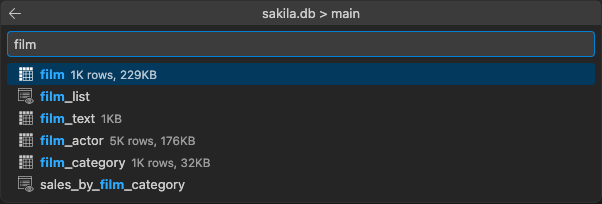
Section titled “Filtering Objects”Once you’ve navigated to a schema and can see object containers (Tables, Views, etc.), you can start typing to filter the list. The filter works across all containers, recursively searching through:
- Tables
- Views
- Stored Procedures
- Functions
- And other database objects
For example, if you’re looking for a table named “users”:
- Open Quick Open
- Navigate to your connection/database/schema (or let it start there automatically)
- Once you see the container list (Tables, Views, etc.), start typing “users”
- Quick Open will flatten the container hierarchy and show all matching objects
The filter is applied as you type, showing only objects whose names contain your search text.
Running Commands
Section titled “Running Commands”When you select a database object in Quick Open, it automatically executes the default command for that object type:
- Tables/Views: Opens the data viewer showing the table contents
- Stored Procedures/Functions: Opens the routine definition
- Other Objects: Performs the default action for that object type
- Repeated Access: Quick Open remembers your last selection, so pressing the shortcut again takes you back to the same location.
- Combine with Zero Config: Set up a
.envfile in your project with your database connection, and Quick Open will automatically start at that connection. - Workspace Default: For projects where you always work with a specific connection, set it as the workspace default for instant access.
Related Features
Section titled “Related Features”- Zero Config - Automatic connection discovery from
.envfiles - Filter - Filter objects in the DB Explorer tree view