
DataCombine and compare
Join datasets
The Join feature in DBCode lets you combine rows from two datasets based on matching column values — similar to a SQL JOIN, but performed entirely in the client without writing any SQL. Join tables, views, or the results of any query, within the same database, across different databases, or even across different servers and connection types.
Starting a Join
Section titled “Starting a Join”There are two ways to start a join:
From the DB Explorer
Section titled “From the DB Explorer”-
Single Selection: Right-click on a table or view in the DB Explorer and select Join…. A picker will appear allowing you to browse and select the second table to join with.
-
Multi-Selection: Hold Ctrl (Windows/Linux) or Cmd (macOS) and click to select exactly two tables or views, then right-click and select Join…. The first selected item becomes the left side, and the second becomes the right side.
Row Limit Options
Section titled “Row Limit Options”When joining from the DB Explorer, you’ll be prompted to select a row limit:
- All rows - Load the entire dataset from each table
- First 1,000 rows - Quick join on a sample
- First 10,000 rows - Moderate sample size
- First 100,000 rows - Larger sample for thorough analysis
From the Results Panel
Section titled “From the Results Panel”Join the results of any SQL query directly from the Results Panel:
- Context menu - Right-click on a result tab and select Join With… to enter selection mode, then click the second tab.
- Drag and drop - Drag one result tab onto another to join them directly.
- Multi-select - Hold Ctrl (Windows/Linux) or Cmd (macOS) and click exactly two tabs, then right-click and select Join.
- Convert - Right-click on a stacked or union tab and select Convert to Join to re-combine using a join instead.
Configuring the Join
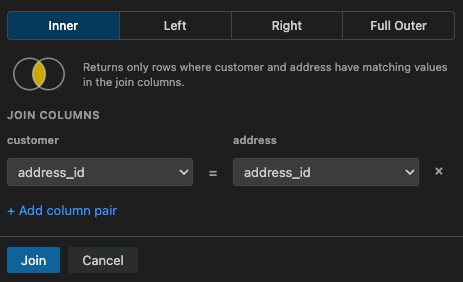
Section titled “Configuring the Join”Before the join is computed, a configuration modal appears where you set up the join parameters:
Join Type
Section titled “Join Type”Select the type of join to perform:
- Inner Join - Returns only rows where both sides have matching values in the join columns.
- Left Join - Returns all rows from the left side, plus matching rows from the right. Non-matching right-side values appear as
NULL. - Right Join - Returns all rows from the right side, plus matching rows from the left. Non-matching left-side values appear as
NULL. - Full Outer Join - Returns all rows from both sides. Non-matching values on either side appear as
NULL.
A visual Venn diagram updates as you select different join types to illustrate which rows will be included.
Column Mapping
Section titled “Column Mapping”Map one or more column pairs between the left and right datasets. These pairs define the matching condition (equivalent to the ON clause in SQL).
- DBCode automatically suggests column matches based on matching column names and compatible types.
- Add additional column pairs with the + button, or remove pairs with the - button.
- Each pair specifies a left column and a right column that must have equal values for rows to match.
Understanding the Results
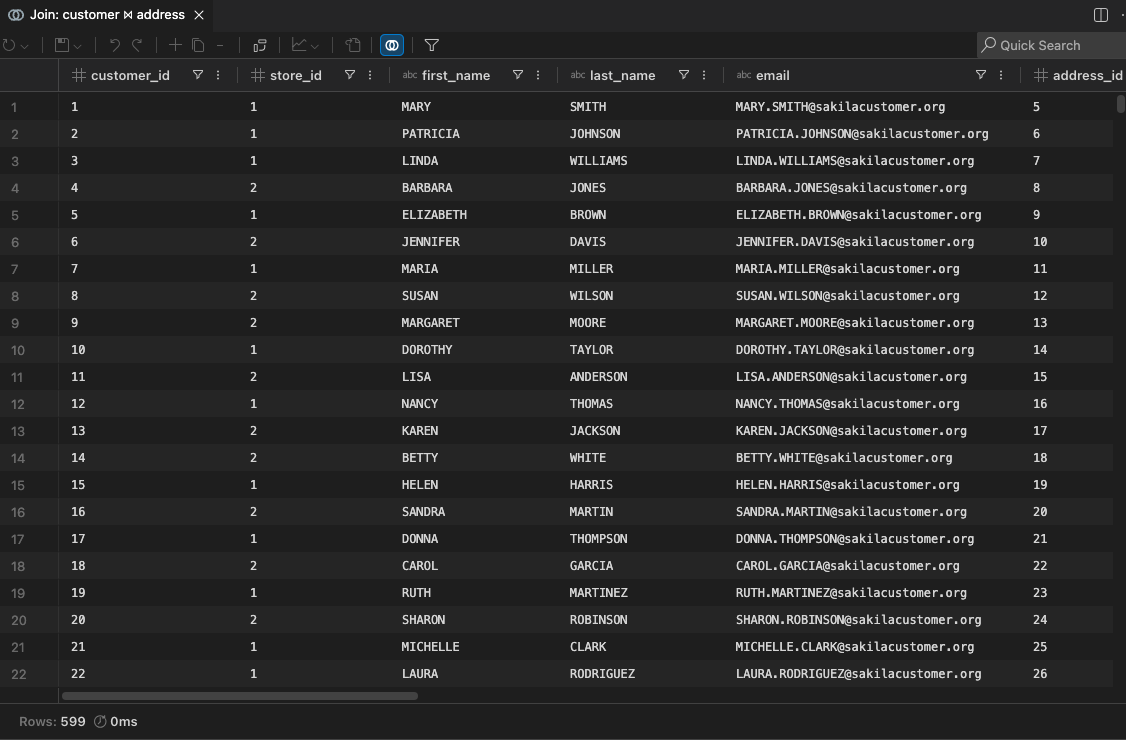
Section titled “Understanding the Results”The join result opens in a grid (either a dedicated editor tab from the DB Explorer, or a new result tab in the Results Panel). The grid has all the standard features — sorting, filtering, exporting, charting, and more.
Column Naming
Section titled “Column Naming”Columns are prefixed with their source label to avoid ambiguity:
- Join key columns appear once (from the left side)
- All other columns are prefixed with the table or query name (e.g.,
customers.name,orders.total) - When joining across different connections, the connection name is included in the prefix
Join Settings
Section titled “Join Settings”Click the join icon in the toolbar to reopen the configuration modal. You can change the join type or column mapping, and the result will be recomputed immediately. The icon appears as a toggled Venn diagram in the toolbar.
Cross-Server and Cross-Database Joins
Section titled “Cross-Server and Cross-Database Joins”One of the most powerful aspects of the Join feature is the ability to join data across completely different servers and database systems:
- Same server, different databases - Join tables across schemas or databases on the same server
- Different servers, same database type - Join production vs. staging tables
- Different database systems - Join a MySQL table with a PostgreSQL table, or SQL Server with Oracle
This is invaluable for:
- Correlating data across microservices that use different databases
- Enriching datasets by combining reference data from different systems
- Ad-hoc analysis across environments without writing complex ETL