
DataCombine and compare
Compare datasets
The Data Compare feature in DBCode allows you to compare data between two datasets, identify differences, and synchronize changes. Compare tables, views, or the results of any SQL query - within the same database, across different databases, or even across different servers and connection types. This is useful for validating data migrations, auditing changes, or keeping data in sync across environments.
Starting a Comparison
Section titled “Starting a Comparison”There are two ways to start a data comparison:
From the DB Explorer
Section titled “From the DB Explorer”-
Single Selection: Right-click on a table or view in the DB Explorer and select Compare Data With…. A picker will appear allowing you to browse and select the target table.
-
Multi-Selection: Hold Ctrl (Windows/Linux) or Cmd (macOS) and click to select exactly two tables or views, then right-click and select Compare Data With…. The first selected item becomes the source, and the second becomes the target.
Row Limit Options
Section titled “Row Limit Options”When comparing from the DB Explorer, you’ll be prompted to select a row limit:
- All rows - Compare the entire dataset (may be slow for large tables)
- First 1,000 rows - Quick comparison of a sample
- First 10,000 rows - Moderate sample size
- First 100,000 rows - Larger sample for thorough testing
Progress Tracking
Section titled “Progress Tracking”The comparison process shows real-time progress with status indicators:
- Connect to source - Establishing connection to the source database
- Connect to target - Establishing connection to the target database (if different)
- Load data from source - Fetching rows from the source table
- Load data from target - Fetching rows from the target table
- Analyzing differences - Computing the diff between datasets
From the Results Panel
Section titled “From the Results Panel”Compare the results of any SQL query directly from the Results Panel. This allows you to compare filtered data, joined results, or any custom query output - not just raw table data. All rows in the result sets are compared.
- Context menu - Right-click on a result tab and select Compare Data With… to browse and select another table to compare against.
- Drag and drop - Drag one result tab onto another while holding Alt (Windows/Linux) or Option (macOS) to compare them directly.
- Multi-select - Hold Ctrl (Windows/Linux) or Cmd (macOS) and click exactly two tabs, then right-click and select Compare Data.
Understanding the Results
Section titled “Understanding the Results”The compare view displays a unified grid showing all rows from both datasets with differences highlighted:
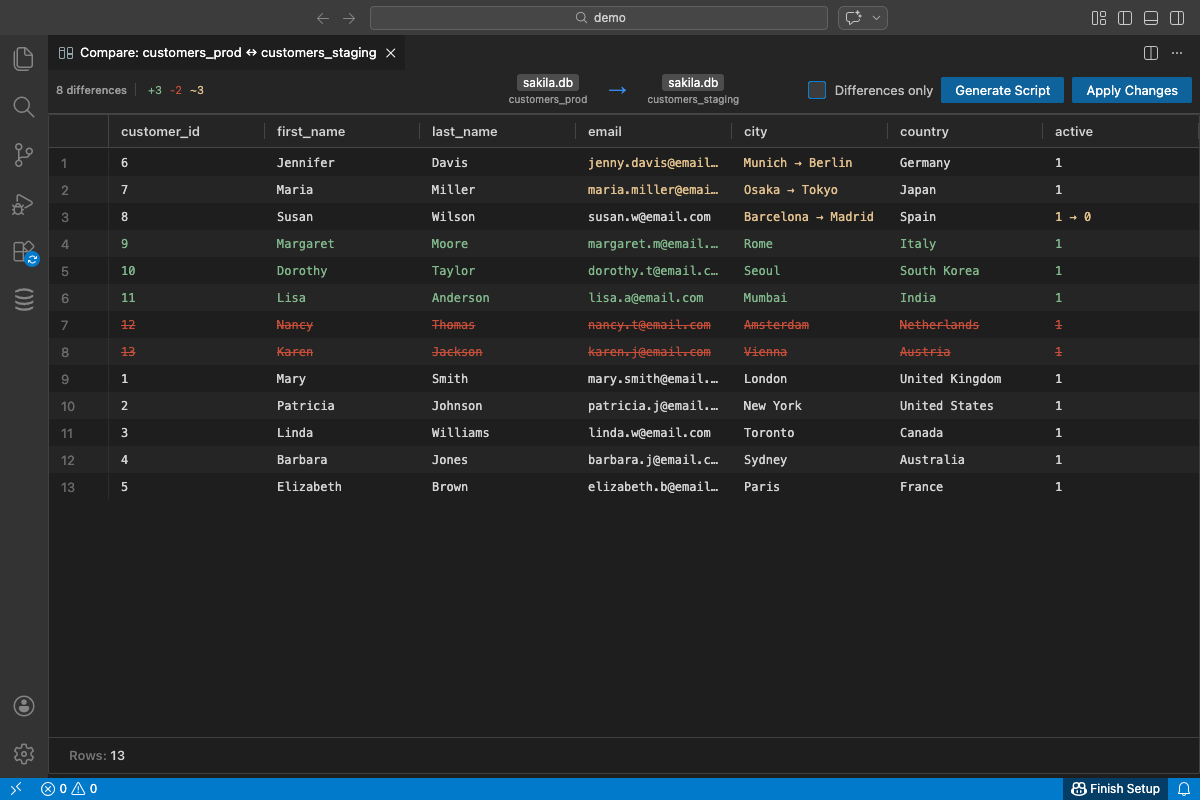
Difference Statistics
Section titled “Difference Statistics”The toolbar shows summary statistics:
- Total differences - Combined count of all changes
- +N (green) - Rows that exist only in the source (inserts)
- -N (red) - Rows that exist only in the target (deletes)
- ~N (yellow) - Rows that exist in both but have different values (updates)
Row States
Section titled “Row States”Rows are styled by their state:
- Green text - Row exists in source but not in target (will be inserted)
- Red text with strikethrough - Row exists in target but not in source (will be deleted)
- Yellow text - Cells that differ between source and target (will be updated)
Filtering
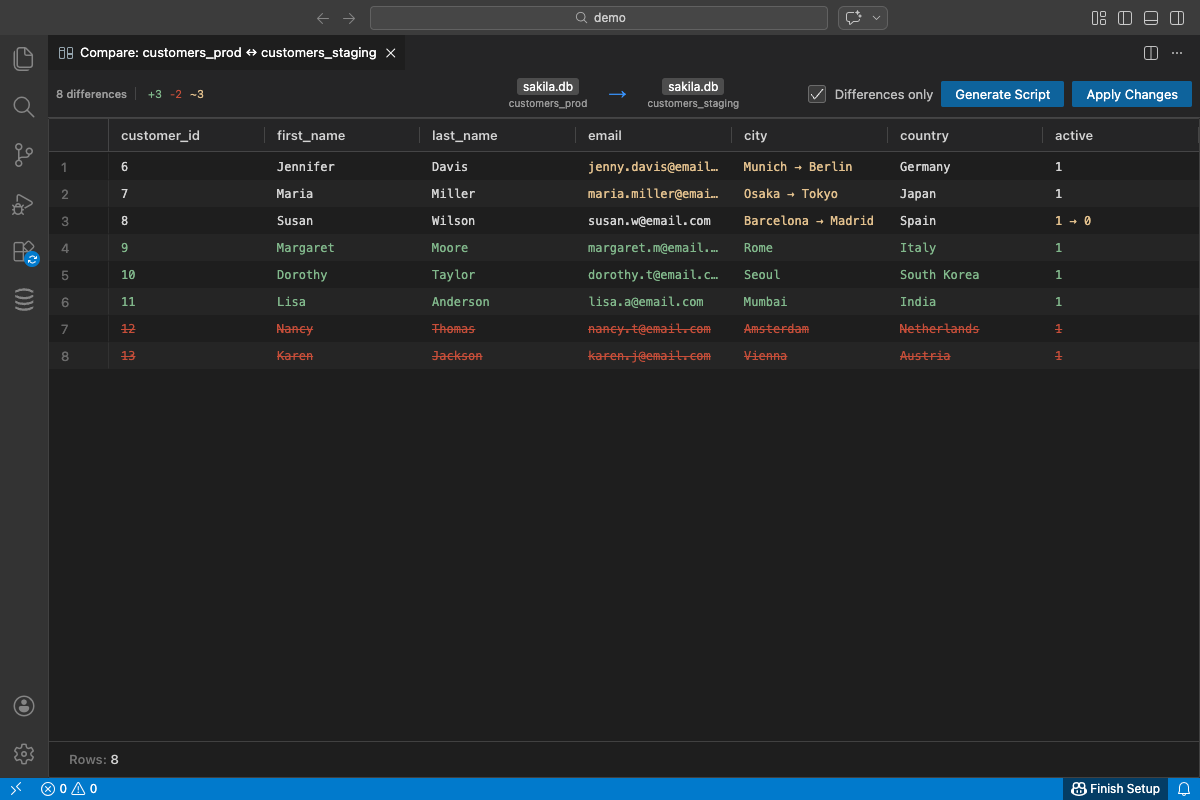
Section titled “Filtering”Use the Differences only checkbox to hide matching rows and focus only on the differences.
Synchronization Direction
Section titled “Synchronization Direction”The direction arrow in the toolbar shows the sync direction (source → target). Click it to swap the direction, which inverts the meaning of inserts and deletes:
- Source → Target: Changes will be applied to make the target match the source
- Target → Source: Changes will be applied to make the source match the target
Applying Changes
Section titled “Applying Changes”Generate Script
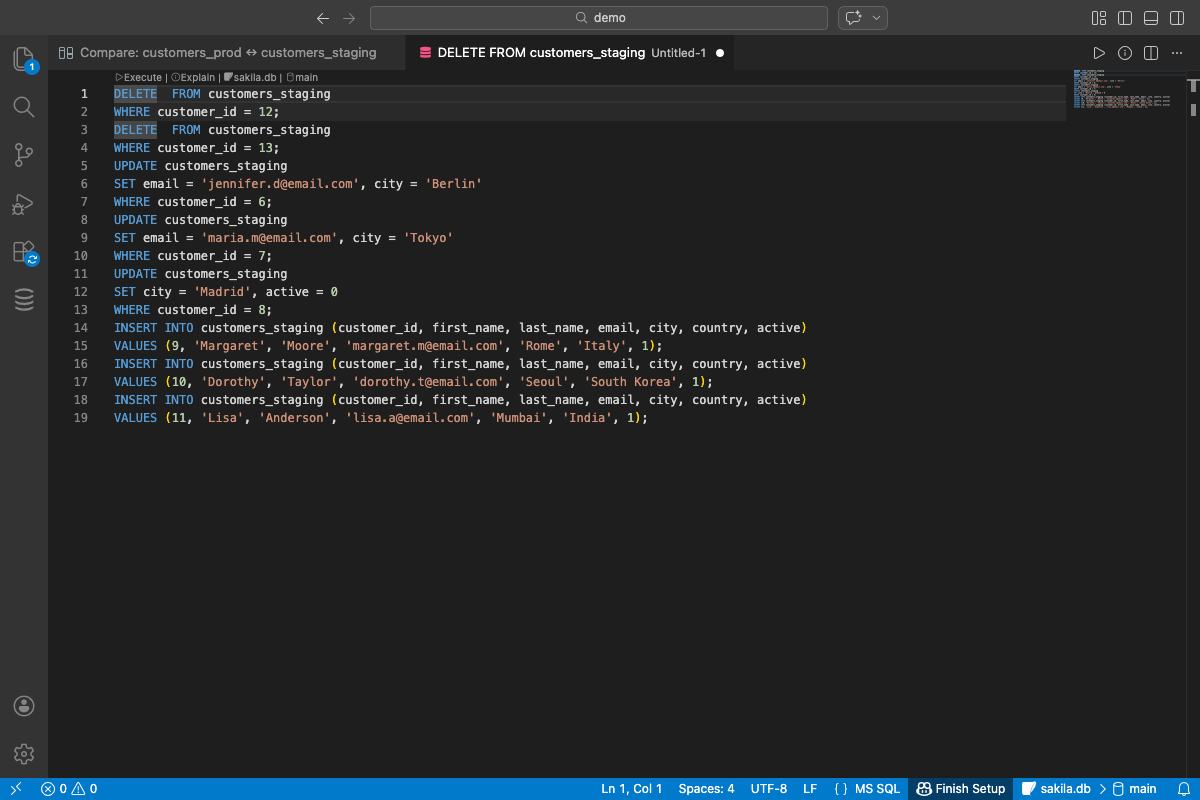
Section titled “Generate Script”Click Generate Script to create a SQL script containing all the INSERT, UPDATE, and DELETE statements needed to synchronize the target with the source. The script opens in a new editor where you can review and modify it before execution.
Apply Changes
Section titled “Apply Changes”Click Apply Changes to execute the synchronization directly. This will execute all necessary INSERT, UPDATE, and DELETE statements
Warning: Apply Changes executes real modifications to your database. Always review the changes carefully or use Generate Script first to inspect the SQL.
Key Matching
Section titled “Key Matching”To match rows between source and target, DBCode needs to know which columns uniquely identify each row. If the table has a primary key defined, it will be used automatically. Otherwise, you’ll be prompted to select the key columns that should be used for matching.
Cross-Server and Cross-Database Comparison
Section titled “Cross-Server and Cross-Database Comparison”One of the most powerful features of Data Compare is the ability to compare tables across completely different servers and database systems. You can compare:
- Same server, different databases - Compare tables across schemas or databases on the same server
- Different servers, same database type - Compare production vs. staging PostgreSQL instances
- Different database systems entirely - Compare a MySQL table against a PostgreSQL table, or SQL Server against Oracle
This is invaluable for:
- Validating data migrations between systems
- Comparing production vs. staging environments
- Auditing data across replicas
- Verifying ETL processes that move data between platforms
The comparison handles data type differences automatically where possible, matching columns by name and converting compatible types for comparison.