
ConnectionsOrganize
Watched Folders
Watch a folder of database files and DBCode will automatically discover connections inside it. When files are added or removed, the tree updates in real time.
Supported file types: SQLite (.db, .sqlite, .sqlite3), DuckDB (.duckdb), Microsoft Access (.mdb, .accdb), and other file-based formats like Parquet, Excel, and Avro.
Adding a Watched Folder
Section titled “Adding a Watched Folder”Right-click any folder in the VS Code file explorer and select Watch Folder with DBCode.
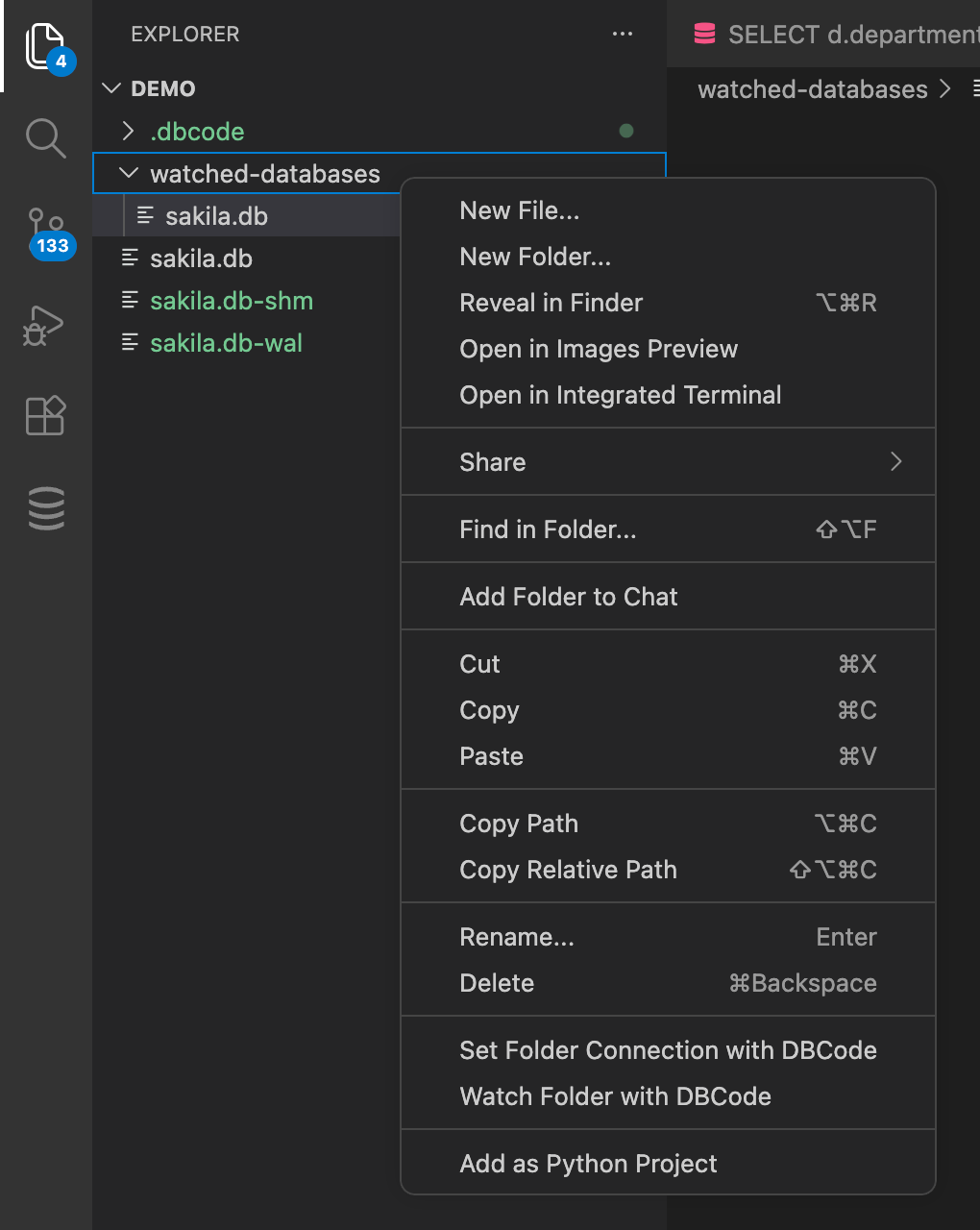
You’ll be asked where to store the configuration:
- Workspace Settings - Stored relative to your workspace. Portable across machines when committed to version control.
- Global Settings - Stored as an absolute path. Available in all workspaces on your machine.
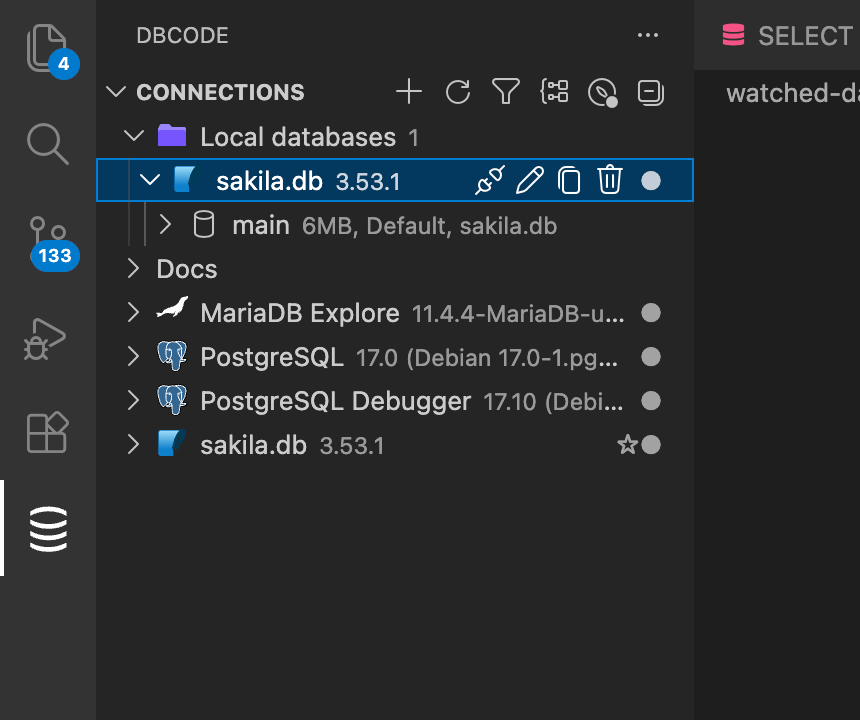
The folder appears in the Connections view as a collapsible node. The number beside its name shows how many connections DBCode discovered. Expand it to see those connections, organized by subfolder structure.
How It Works
Section titled “How It Works”When you add a watched folder, DBCode scans it recursively for database files. Each file is matched against known database formats using file extension and header detection (the same mechanism as Zero Config discovery).
A file system watcher monitors the folder for changes:
- New files are discovered automatically and added to the tree.
- Deleted files are removed from the tree. If a deleted file had an active connection, you’ll see a warning.
Managing Watched Folders
Section titled “Managing Watched Folders”Hover over a watched folder in the Connections view to access inline actions:
- Edit (pencil icon) - Rename the folder’s display name.
- Delete (trash icon) - Stop watching the folder and remove it from the tree.
Right-click a watched folder for additional options:
- Refresh - Rescan the folder for database files.
- Rename - Change the display name.
- Delete - Stop watching the folder.
Subfolder Structure
Section titled “Subfolder Structure”If your watched folder contains subfolders with database files, the tree mirrors that structure. You can browse through subfolders just like you would in a file explorer.
My Databases (watched folder)├── development/│ ├── app.db│ └── cache.db├── testing/│ └── fixtures.sqlite3├── main.db└── analytics.duckdbConnections
Section titled “Connections”Connections inside watched folders behave like any other connection in DBCode. You can connect, query, and browse schemas as usual.
The connection count is shown next to the folder name in the Connections view.
Settings
Section titled “Settings”Watched folder configurations are stored in dbcode.watchedFolders in your VS Code settings. Each entry contains an ID, display name, and path.
Workspace-scoped folders use relative paths, making them portable across machines when the workspace is shared via version control. Global folders use absolute paths.