
DB Explorer
Migrations
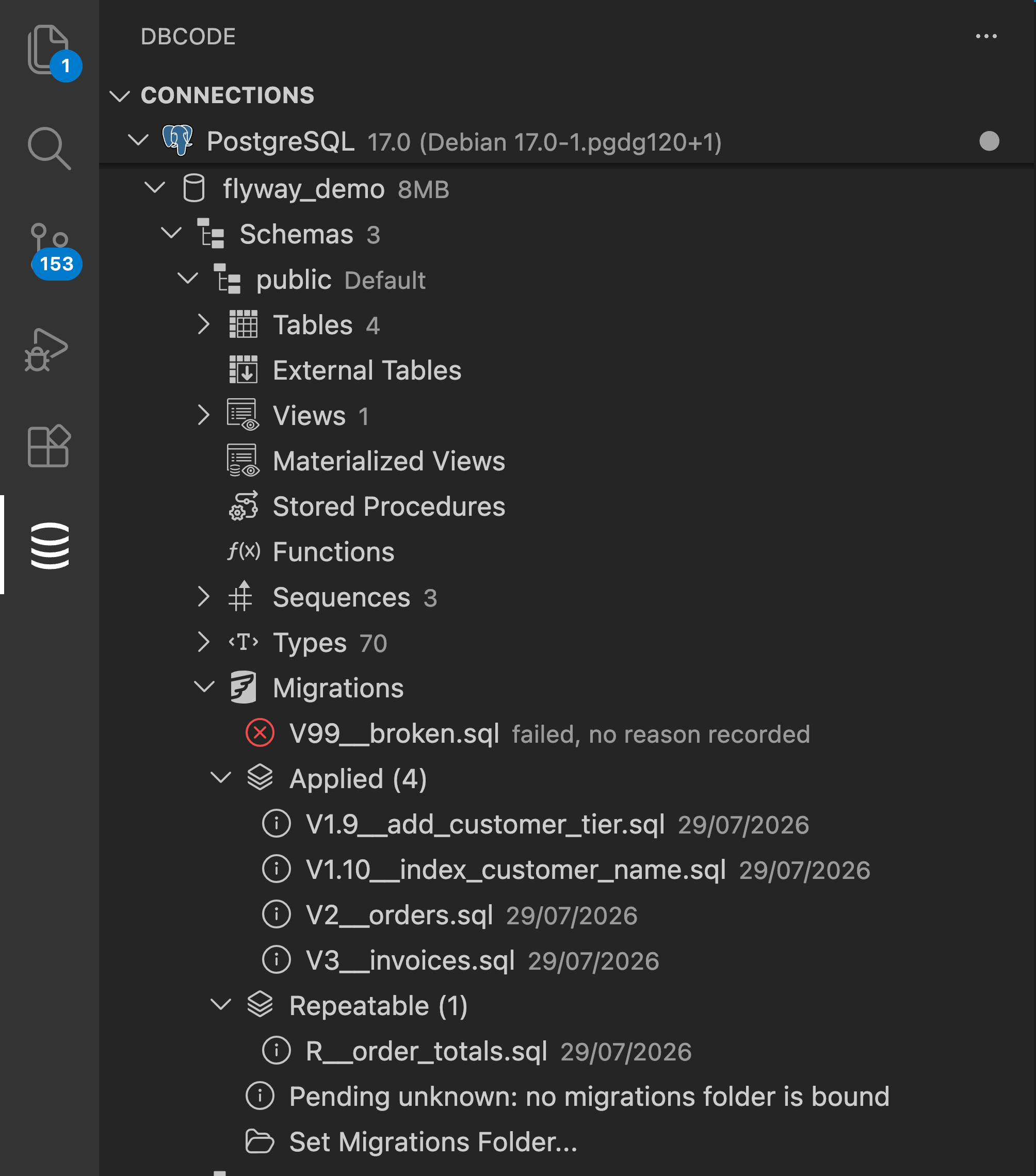
DBCode detects when a database is managed by a migration tool and adds a Migrations node under it in the DB Explorer, comparing the tool’s history table against your migration files.
It is read-only. DBCode never runs a migration and never writes to your database or your files.
Supported tools: Flyway, Prisma, and Rails.
How Detection Works
Section titled “How Detection Works”Detection is automatic and needs no setup. A database with no migration tool shows nothing extra.
flyway_schema_historyand_prisma_migrationsare unique to their tool.schema_migrationsis shared by several tools. DBCode identifies Rails by thear_internal_metadatatable alongside it, or by the table’s columns once it reads them.- If the table can’t be attributed to a known tool, such as golang-migrate, the node reads Migrations found, tool unidentified and lists the recorded versions with no status or commands.
If a role can’t read the table, the node shows an error. Hover it for the reason.
What You See in the Explorer
Section titled “What You See in the Explorer”The node shows exceptions rather than a full inventory.
- The description leads with the tool and a summary: Flyway: 3 pending, 1 failed, or just Flyway when clean.
- Listed individually, failures first: failed, pending, modified, missing, rolled back.
- Grouped into expandable nodes: Applied (n) and Repeatable (n).
- Rows are labelled with the script name,
V4__add_invoices.sql. - A failed row shows the reason where the tool records one. Prisma does; Flyway does not.
Click a row to open its migration file, already connected to the right database. Rows with no file, such as a missing migration, have no click action.
The node also appears while disconnected, showing the detected tool. Expanding it connects and loads the detail.
Binding a Migrations Folder
Section titled “Binding a Migrations Folder”To know what is pending, or to catch an edited migration, DBCode needs your migration files.
Right-click the node and choose Set Migrations Folder…. DBCode offers:
- Locations from your tool configuration:
flyway.toml,flyway.conf, orschema.prisma. - Each tool’s conventional folder,
db/migrationfor Flyway,prisma/migrationsfor Prisma,db/migratefor Rails. - Browse…
Only folders that exist are offered. If none match, the folder picker opens directly.
The binding is stored on the connection, one per database and schema, so a connection can bind a different folder for each schema that runs migrations.
Until a folder is bound, the node reads pending unknown.
Flyway Baselines
Section titled “Flyway Baselines”If a Flyway database was baselined onto an existing schema, everything at or below the baseline version sits inside Applied, marked as satisfied by the baseline rather than executed here.
Edit Detection
Section titled “Edit Detection”Flyway and Prisma store a checksum for each applied migration. DBCode computes its own from your file and reports any disagreement as modified.
Hover a modified row to see both values, the one the tool recorded and the one DBCode computed.
Rails stores no checksum, so modified never occurs for Rails.
Suggested Commands
Section titled “Suggested Commands”DBCode generates the command that would resolve a problem. You copy it and run it yourself.
Right-click a row for the commands that apply to it: Copy Migrate Command on a pending migration, Copy Repair Command on a Flyway migration that failed or was edited, Copy Resolve Command on a failed Prisma migration.
| Status | Flyway | Prisma | Rails |
|---|---|---|---|
| Pending | flyway migrate | prisma migrate deploy | rails db:migrate |
| Failed | flyway repair | prisma migrate resolve --rolled-back <name> | Rails records no failures |
| Modified | flyway repair | not applicable | Rails stores no checksum |
The command never contains a password. Flyway’s references an environment variable:
flyway -url='<url>' -user='<user>' -password="$FLYWAY_PASSWORD" migrateA driver that cannot build a connection string gets no copy action.
Refreshing
Section titled “Refreshing”Migration state is read fresh every time you expand the node. Detection itself is cached.
Right-click the node and choose Refresh Migrations to re-read on demand.